Add parts to a work order
Put the parts you used on the work order, so it shows what the repair took.
Who can do this: Shop, Admin
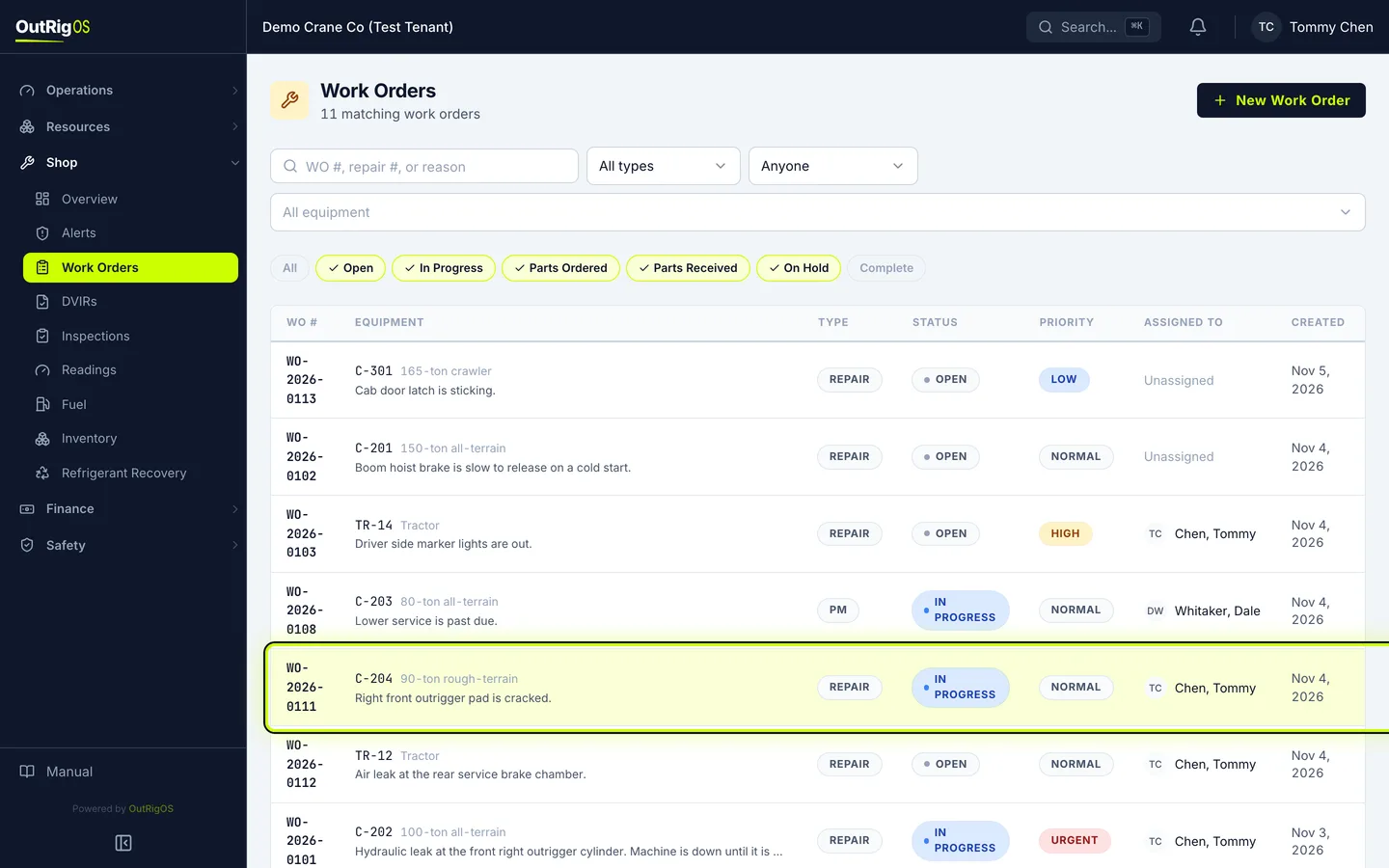
Open the work order
In Shop → Work Orders, open the work order the part belongs to.
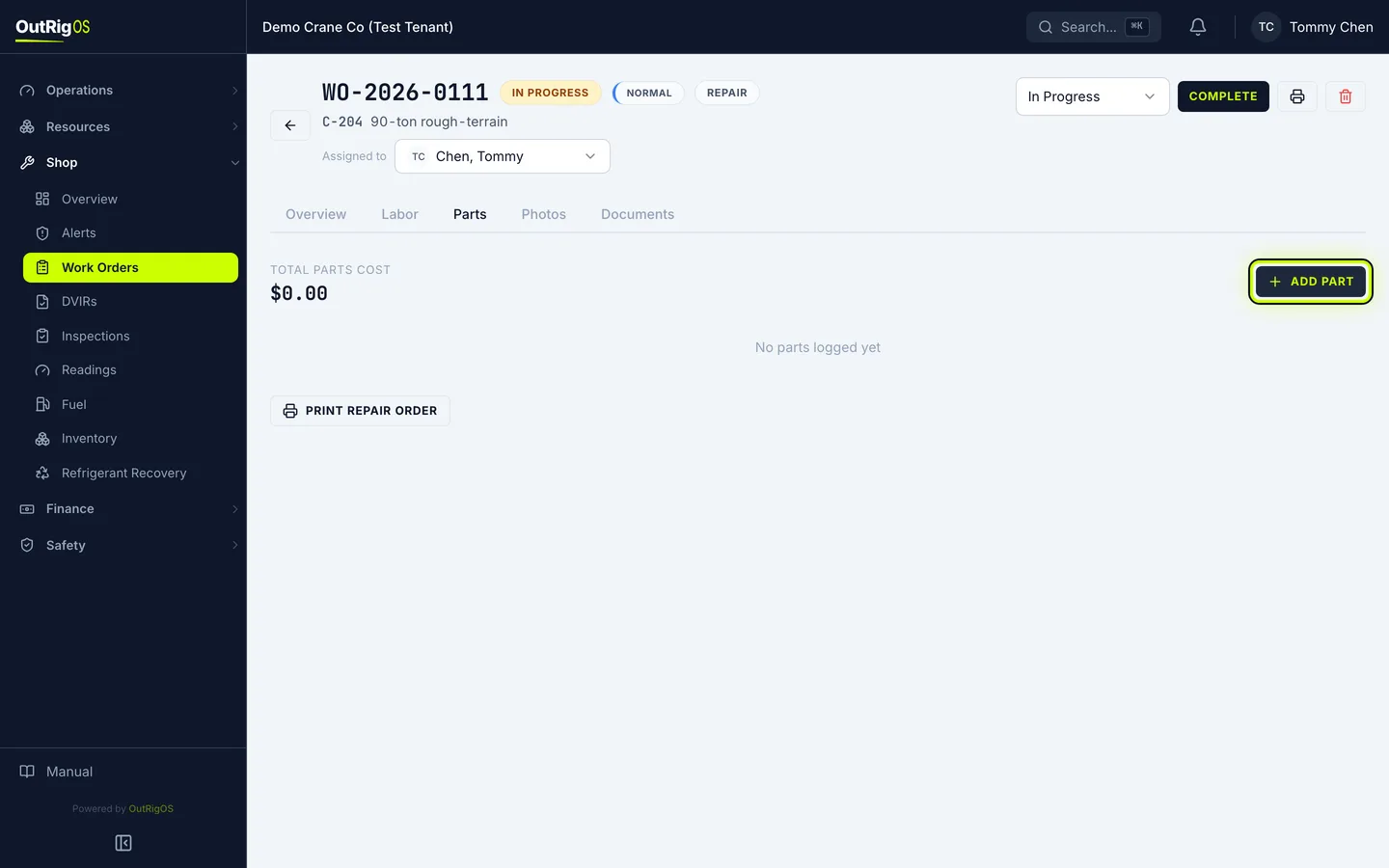
Open the Parts tab
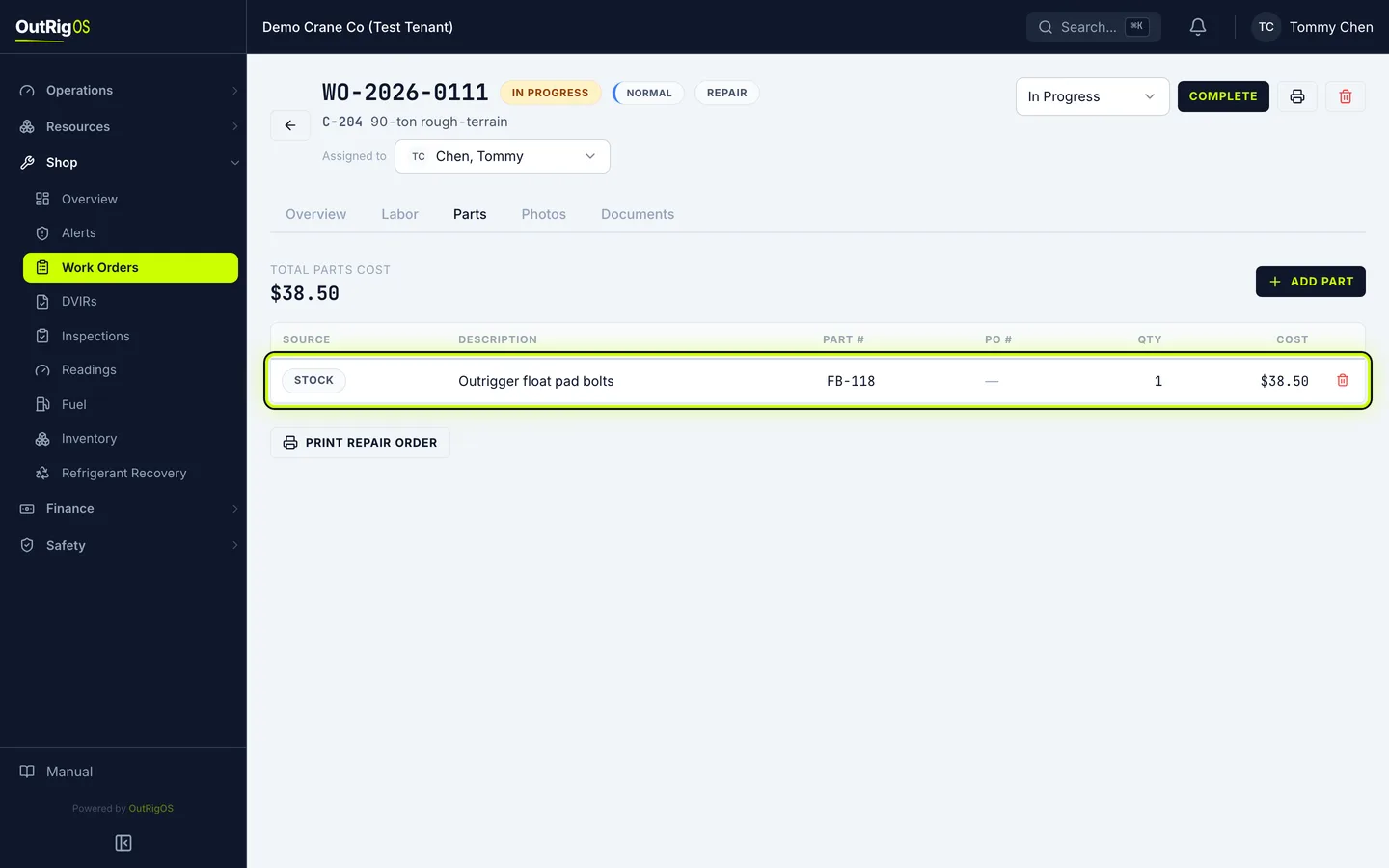
Open the Parts tab and click Add Part.
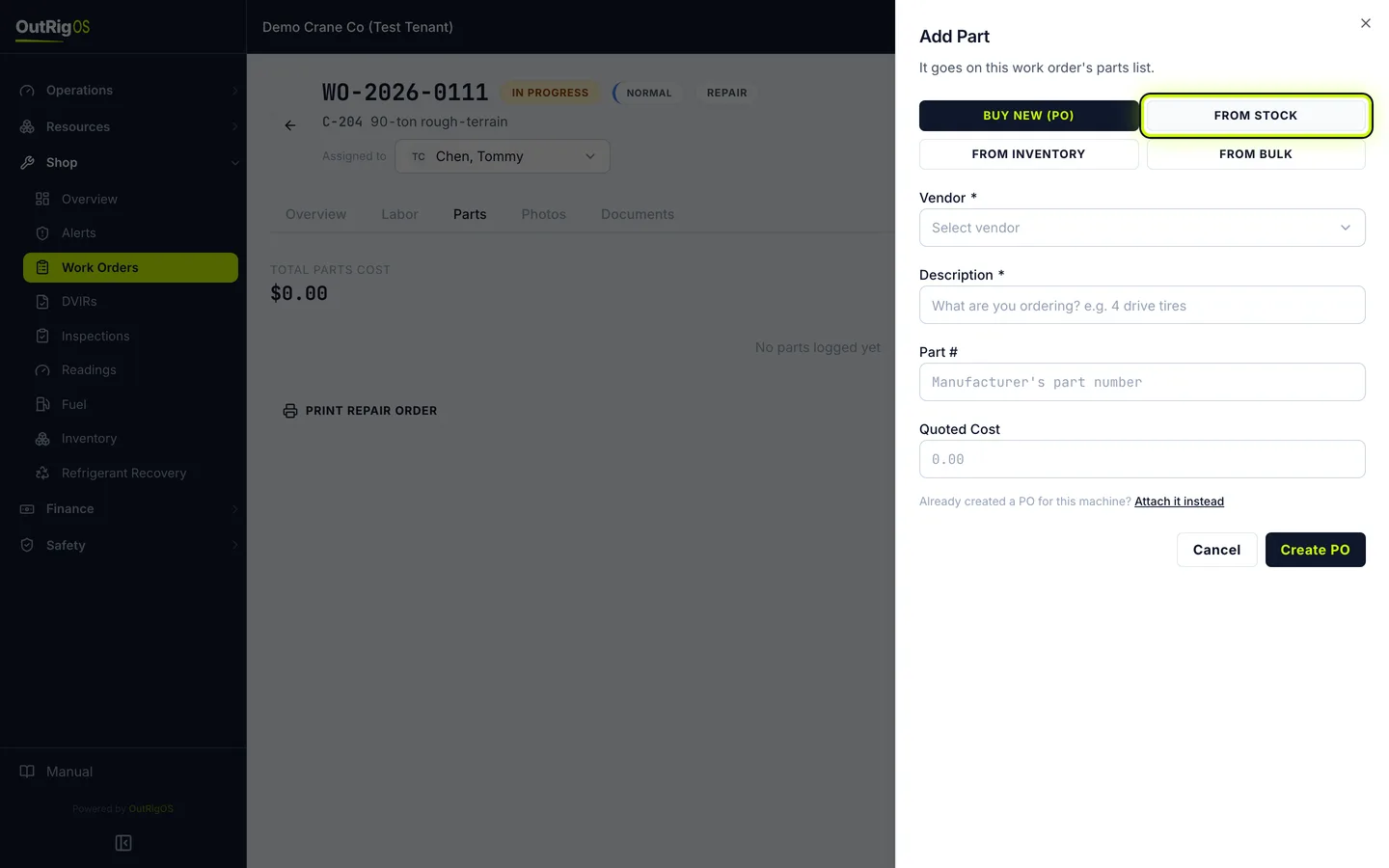
Choose where it came from
Say how the part comes in. For something already on the shelf, choose From Stock.
From Inventory and From Bulk take the part out of your counted stock. Buy New (PO) creates a purchase order for it.
Say what it is
Under Description, say what you used. Add the Part # and Cost if you have them.
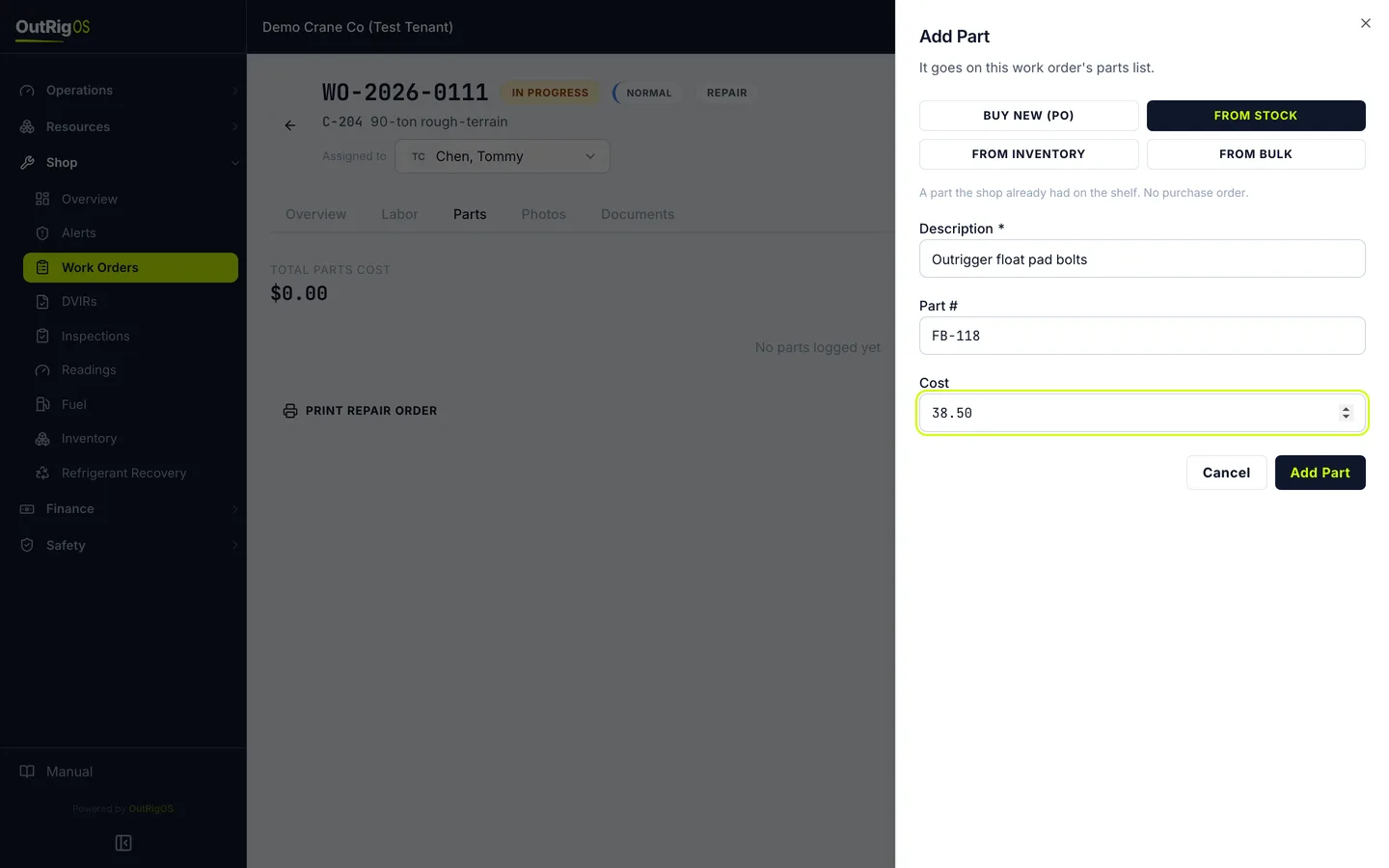
Save it
Click Add Part.
Check the list
The part shows on the list, with where it came from. Add as many as the job took.
Related
Last updated on