Reconcile purchase orders
Match each vendor bill to its purchase order and enter the final cost.
Who can do this: Accounting, Admin, Anyone given the Reconcile purchase orders add-on
Open Purchase Orders
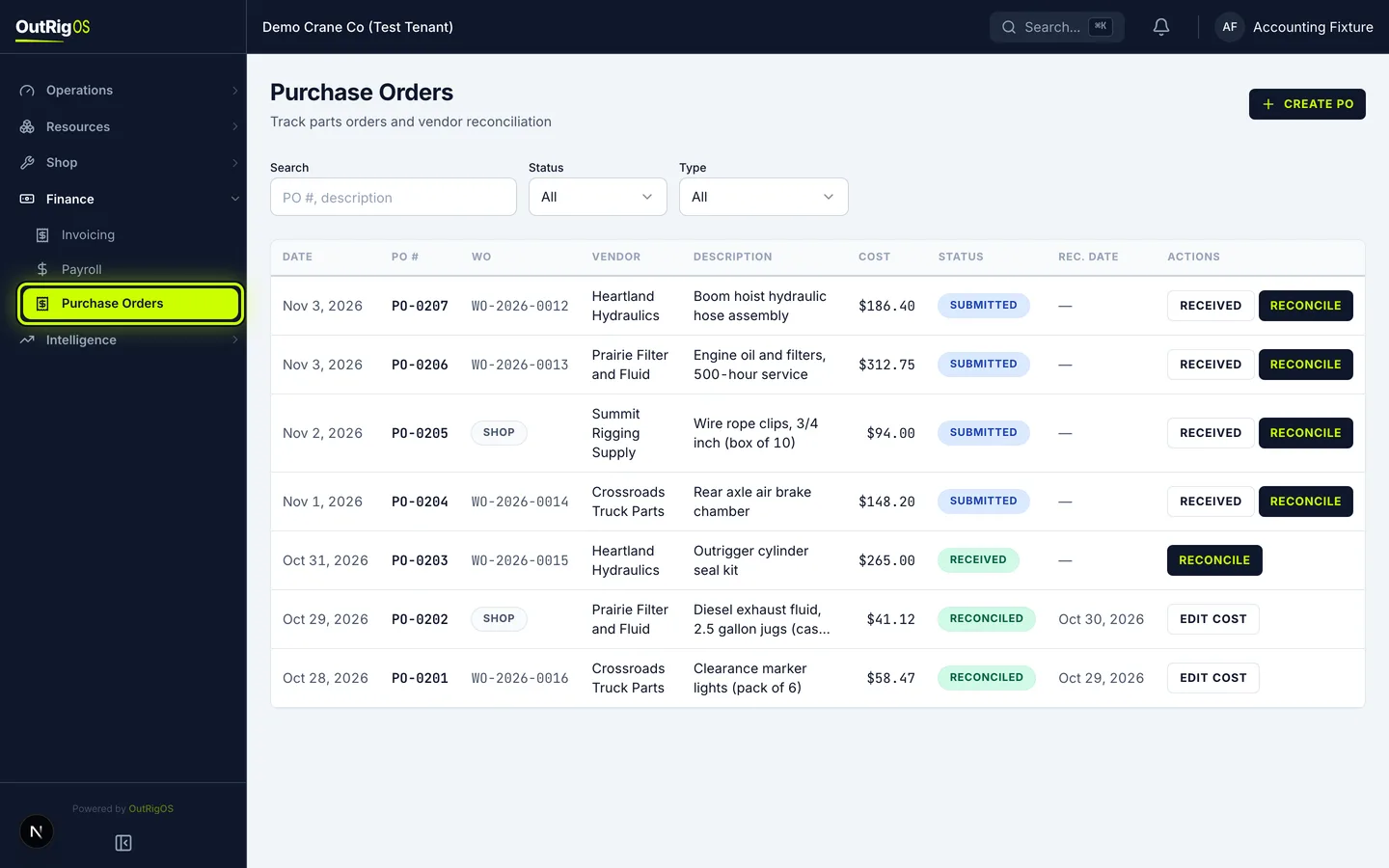
In the sidebar, go to Finance → Purchase Orders. Every purchase order the shop creates shows up here, newest first.
Read the list
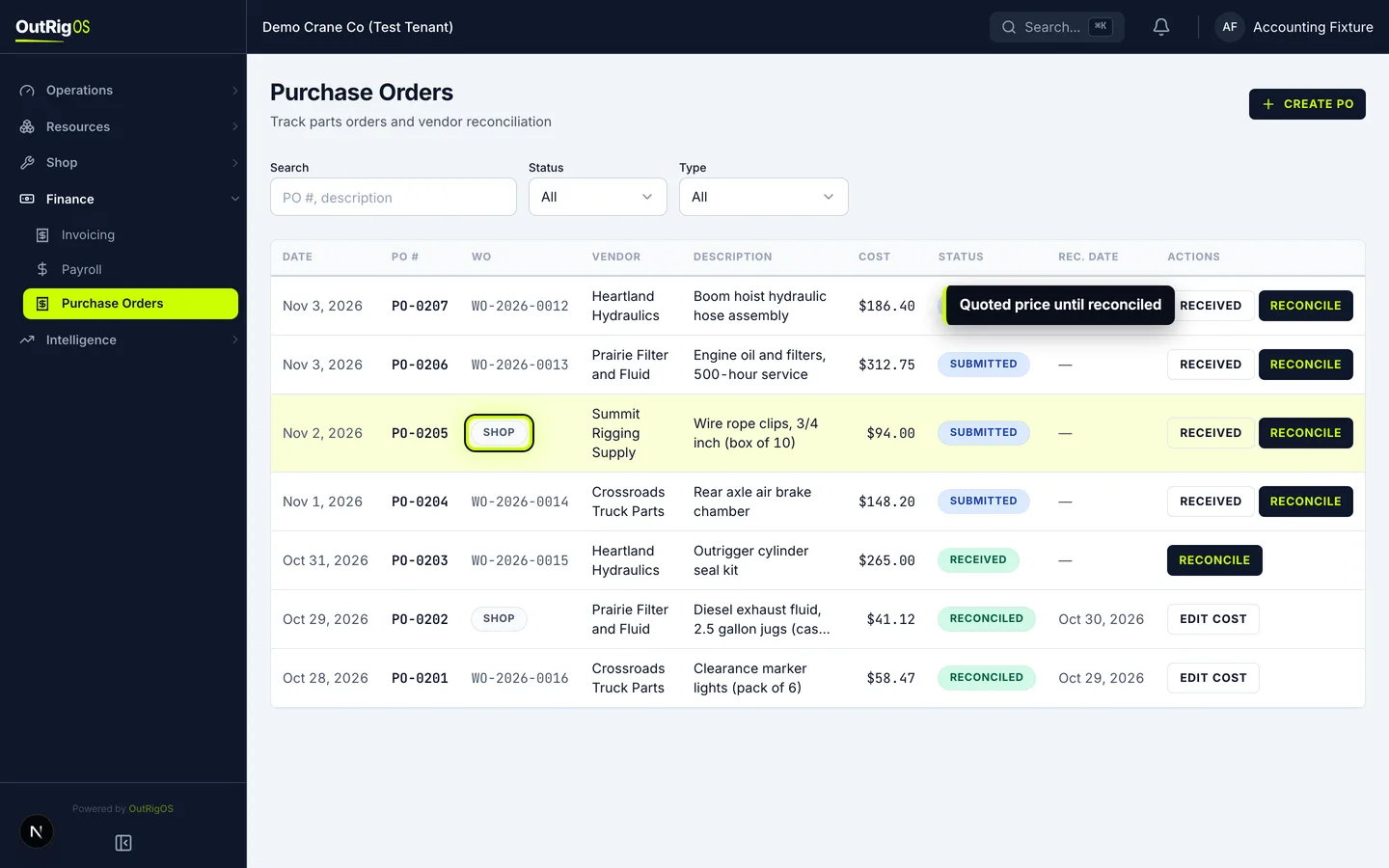
Each row shows the work order the part is for (WO), the Vendor, and the Description. A Shop tag means it was bought for shop stock rather than one machine. Until a purchase order is reconciled, Cost is the quoted price.
Know the statuses
Status shows where each one stands: Submitted means the shop placed the order, Received means the part came in, and Reconciled means the bill is matched and the cost is final.
Show what is waiting on you
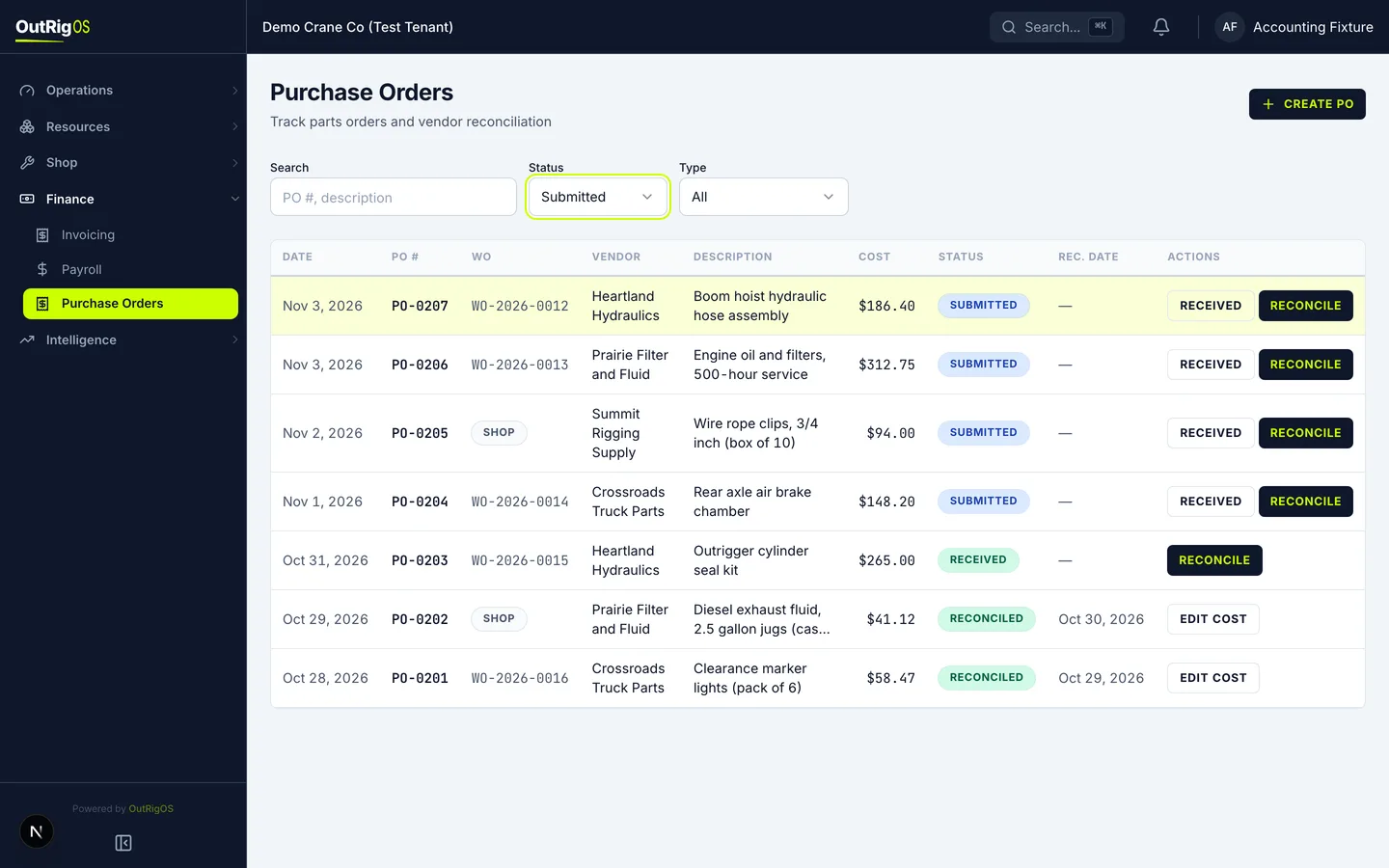
Set Status to Submitted to see the orders still waiting on a bill.
Orders marked Received are waiting too. Set Status to Received to work through those.
Find the bill’s purchase order
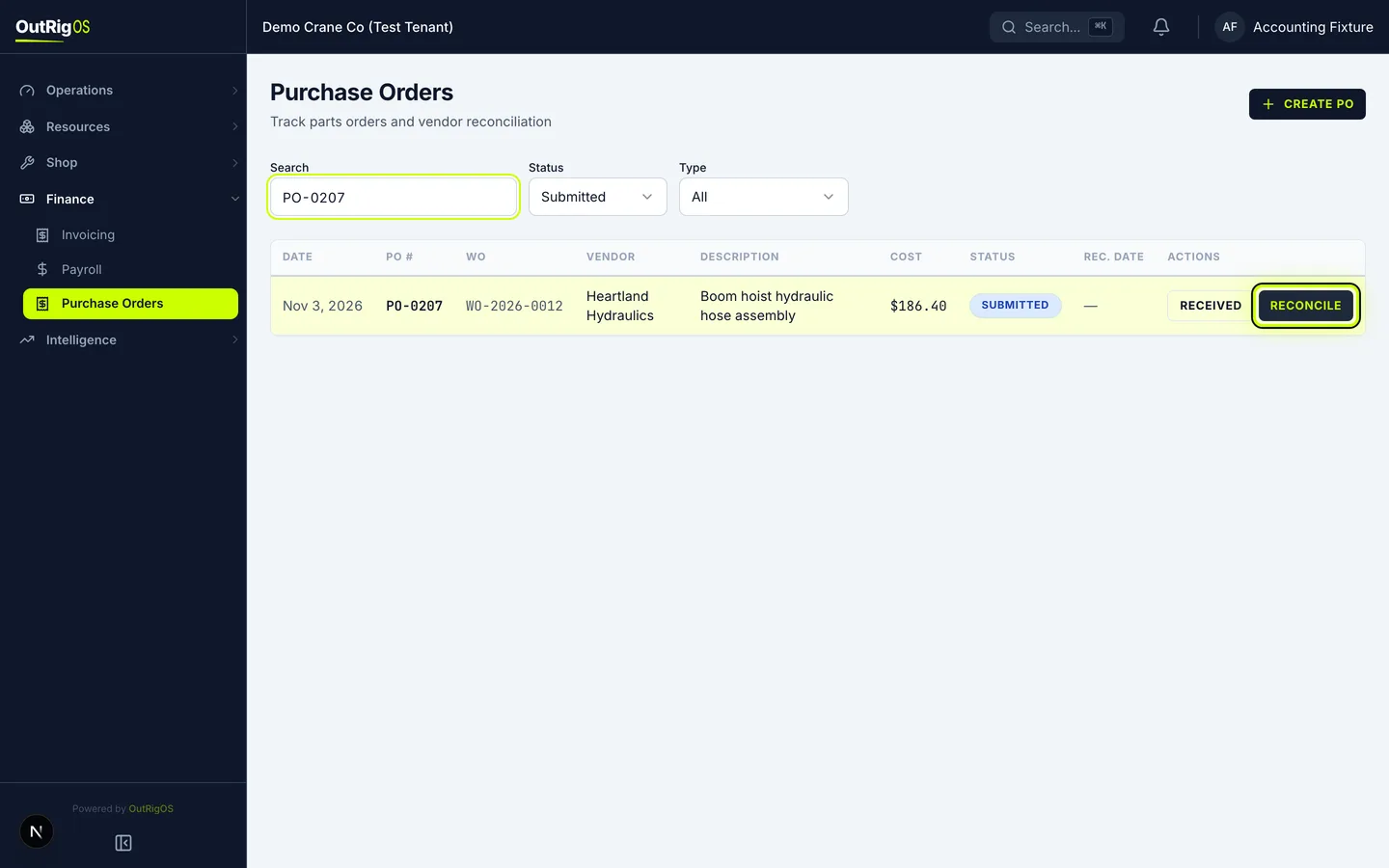
In Search, type the purchase order number from the vendor’s bill.
Check it against the bill
Check that the Vendor and Description match the bill, then click Reconcile.
Enter the final cost
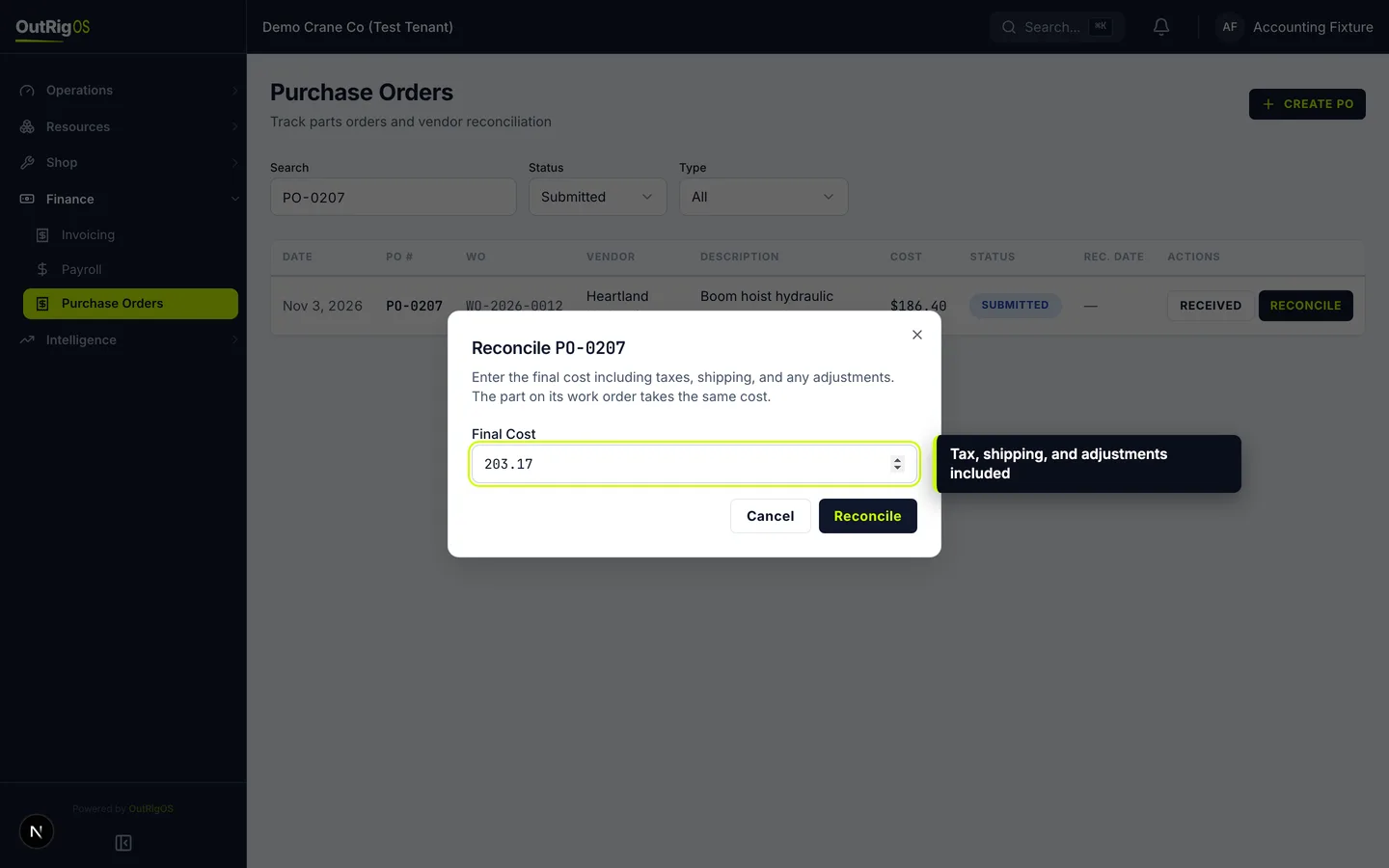
In Final Cost, enter the bill’s total, including tax, shipping, and any adjustments. It starts at the quoted price.
Save it
Click Reconcile.
It leaves the list
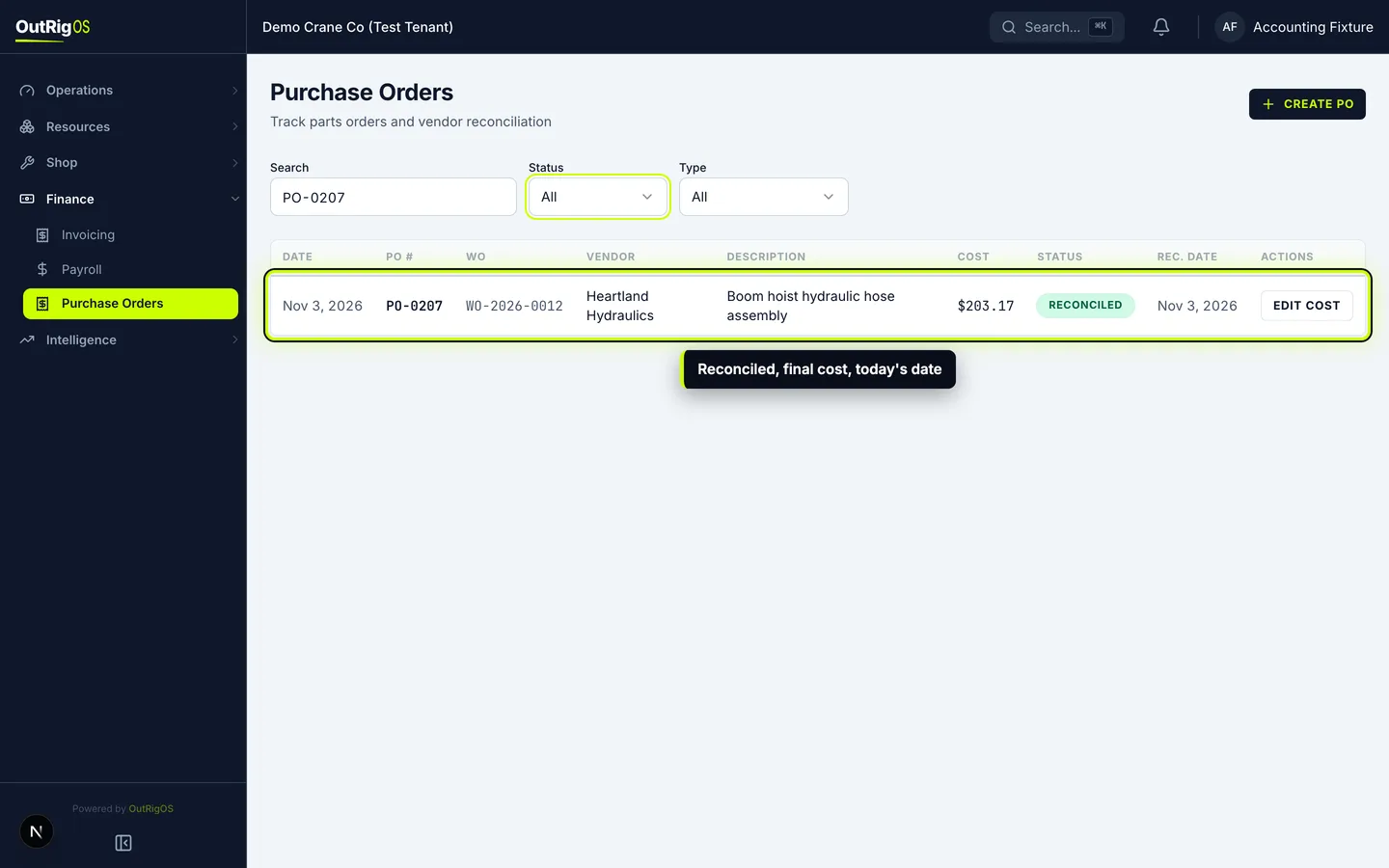
The purchase order leaves the Submitted list. Set Status back to All to see it.
Check the result
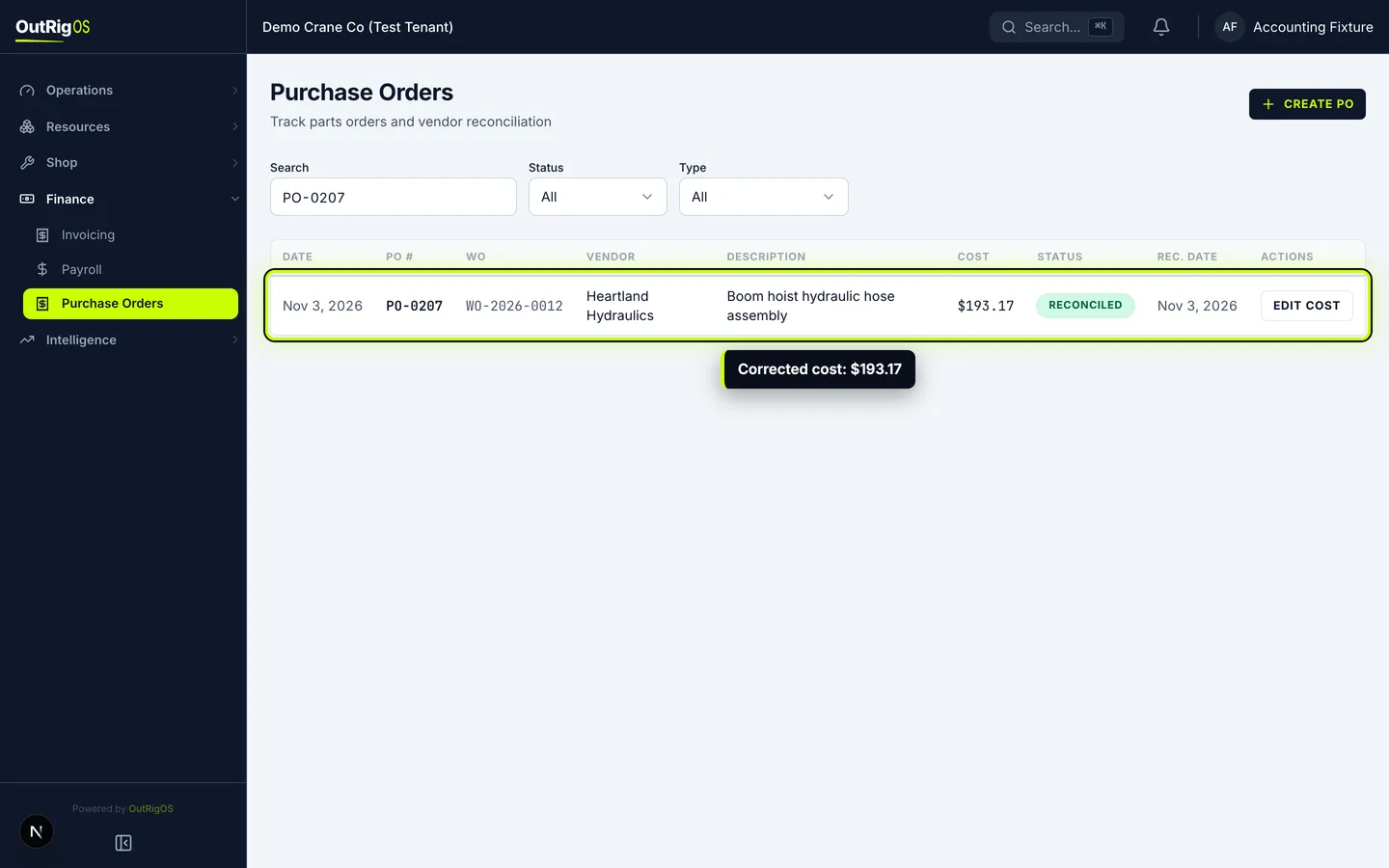
Status shows Reconciled, Cost shows the final cost, and Rec. Date shows today. The part on its work order takes the same cost, so the repair’s parts cost matches the bill.
Correct it later
Click Edit cost.
Enter the corrected total
Enter the new total in Final Cost, then click Save.
You can correct a reconciled purchase order at any time. The part on its work order follows the new cost.
That is the job
The corrected cost shows on the list. Work through every Submitted and Received purchase order the same way.