Find a storage item
Search the yard by number, customer or jobsite, and narrow the list with filters.
Who can do this: Storage, Admin, Dispatch, Estimating, Accounting
Open Storage
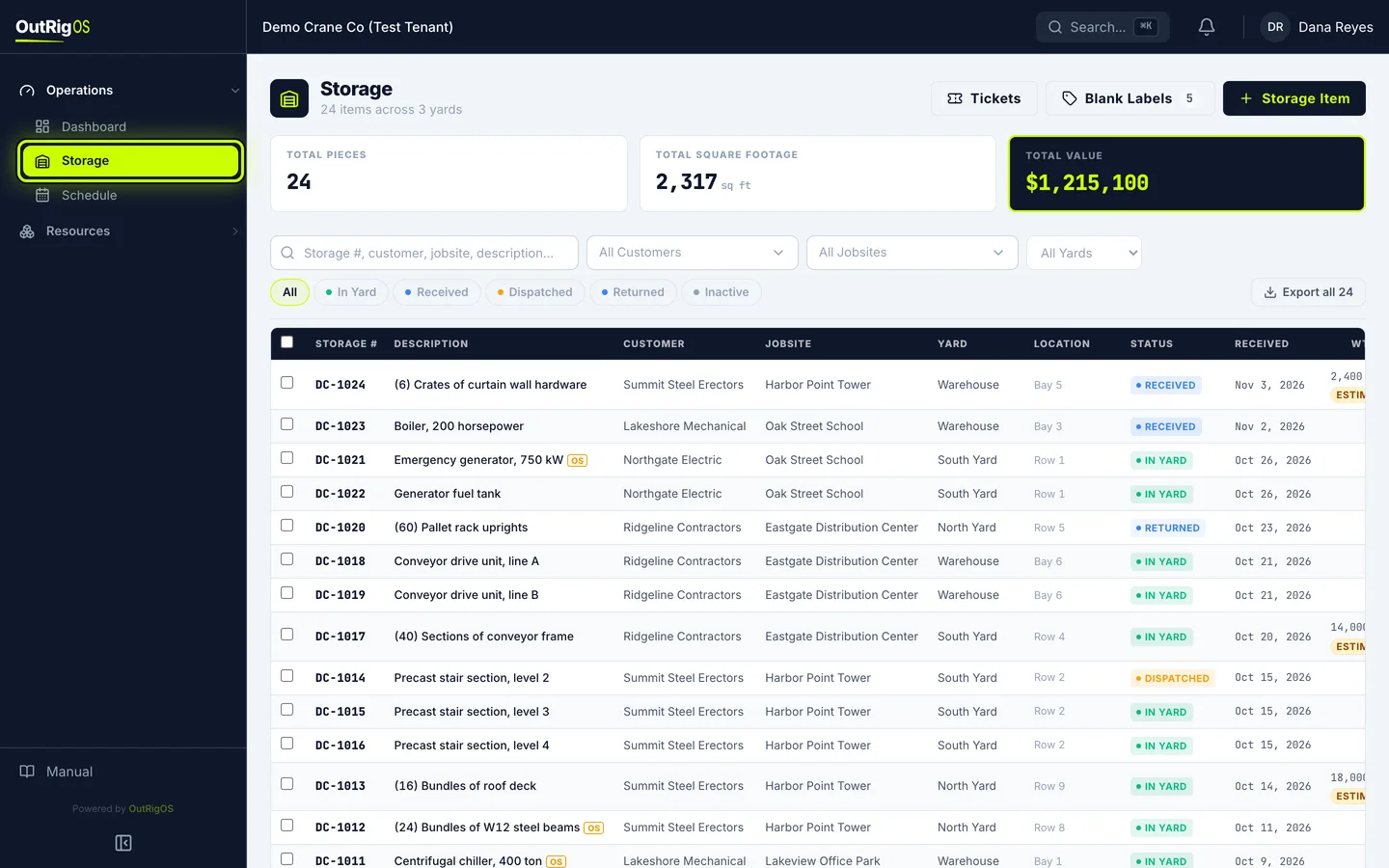
In the sidebar, go to Operations → Storage. The list shows everything in your yards, newest first.
Read the totals
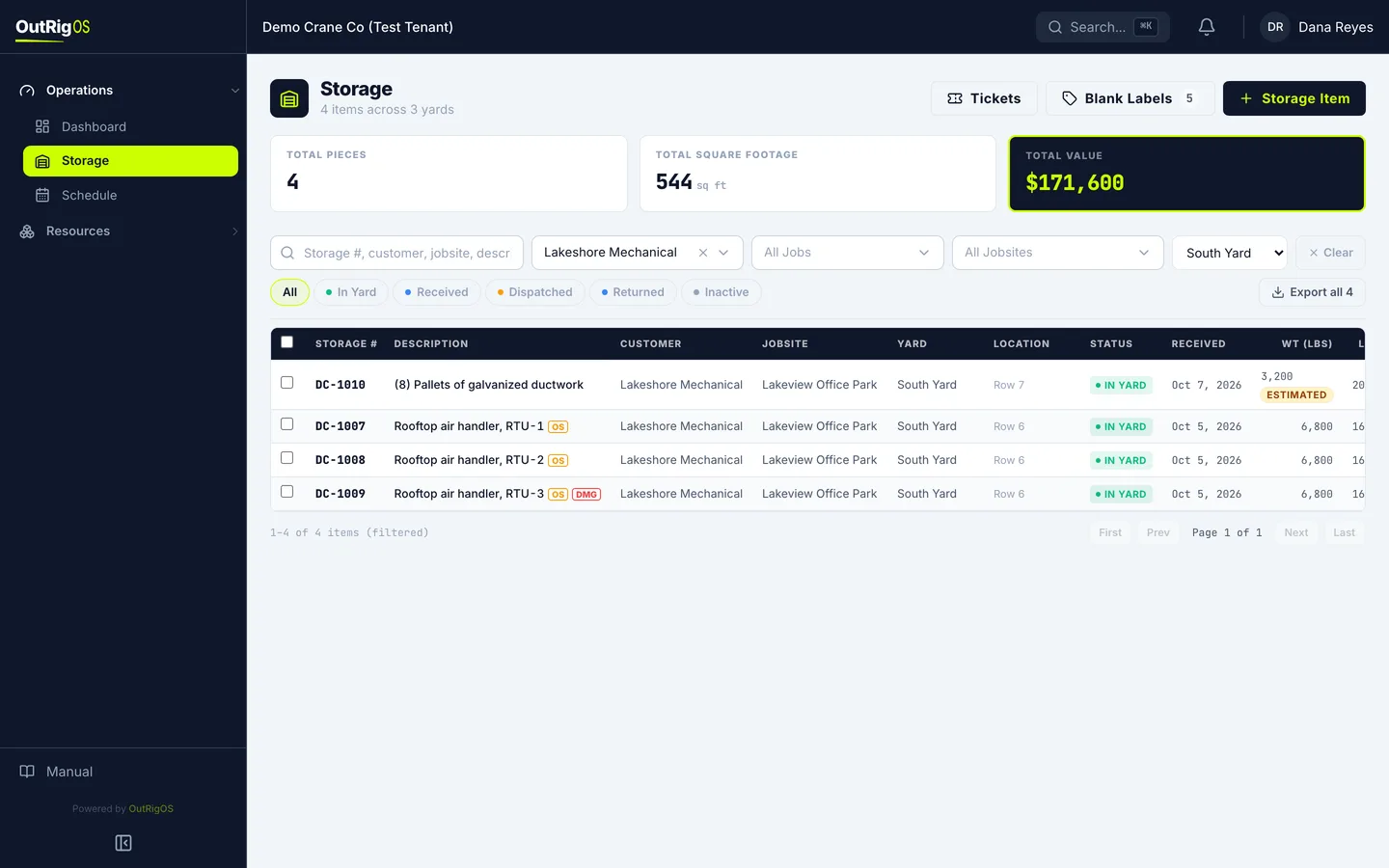
The boxes across the top add up whatever is on the list: Total Pieces, Total Square Footage and Total Value. They change as you narrow the list.
Search
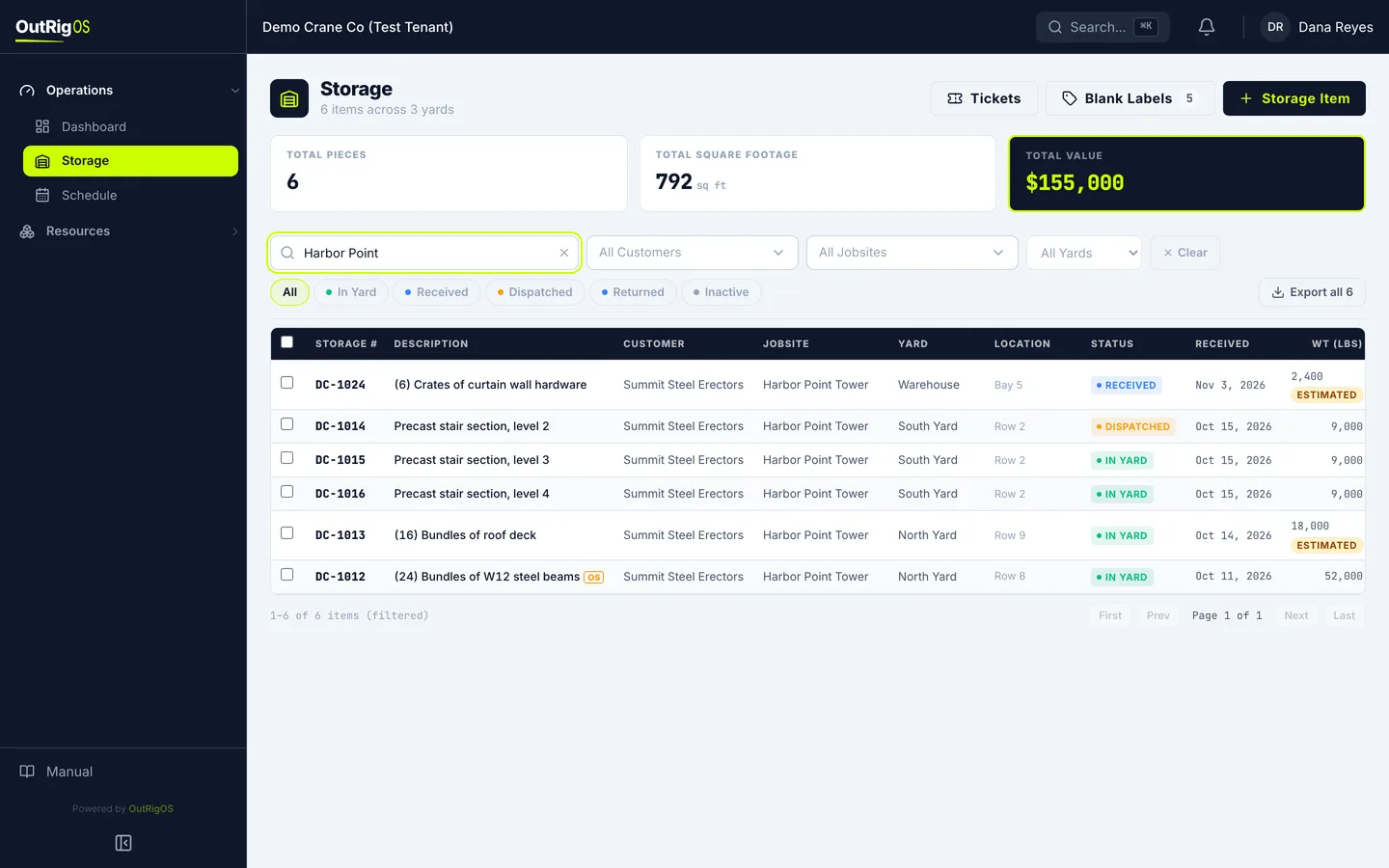
Type in the search box. A storage number, customer, jobsite, serial number or part of the description all work.
Start over
Click Clear.
Filter by customer
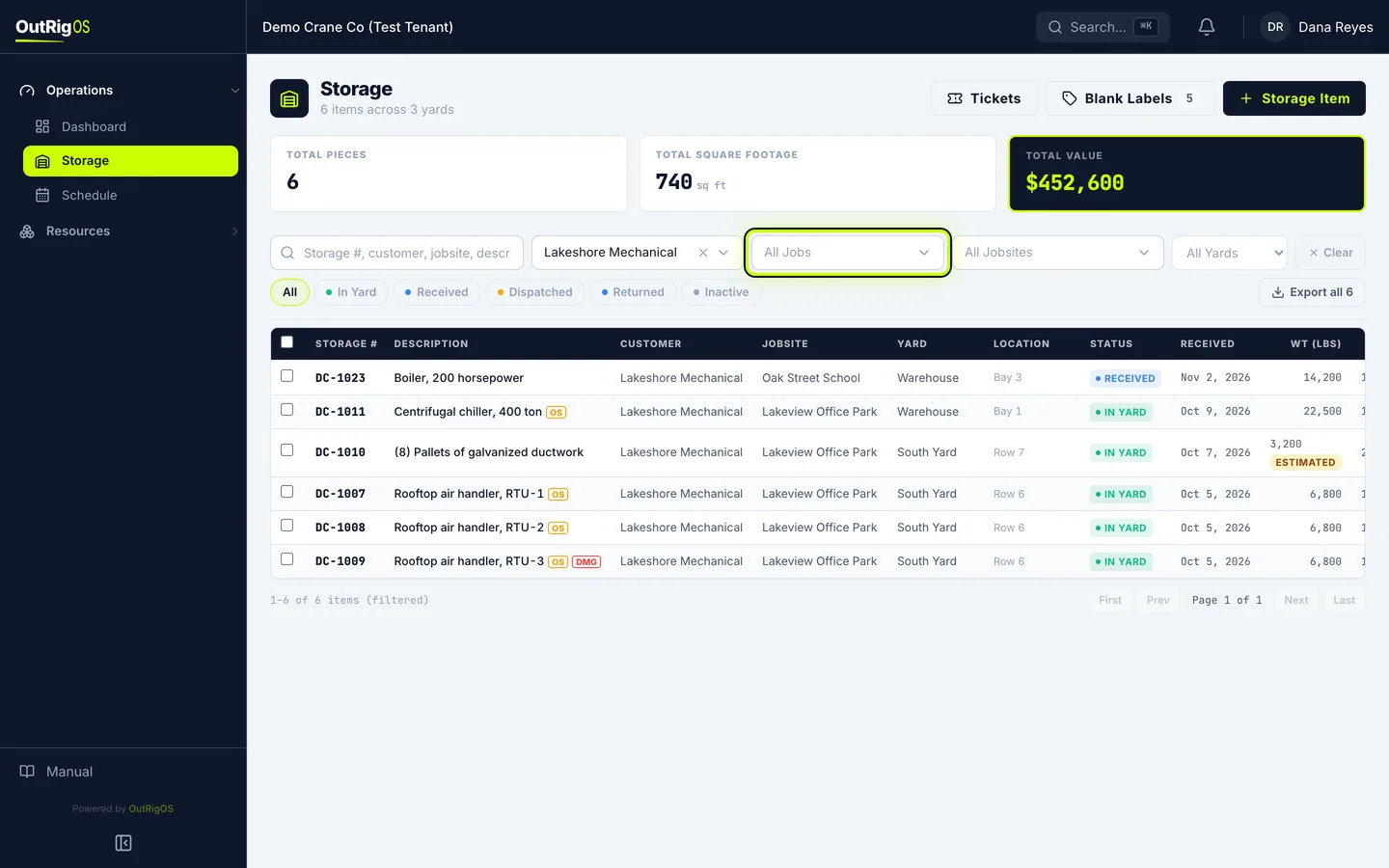
Click Customer and pick the company. Once you have, a Job filter appears for that customer’s jobs.
Filter by yard
Pick a yard to see what is sitting in it. The filters work together.
Know the statuses
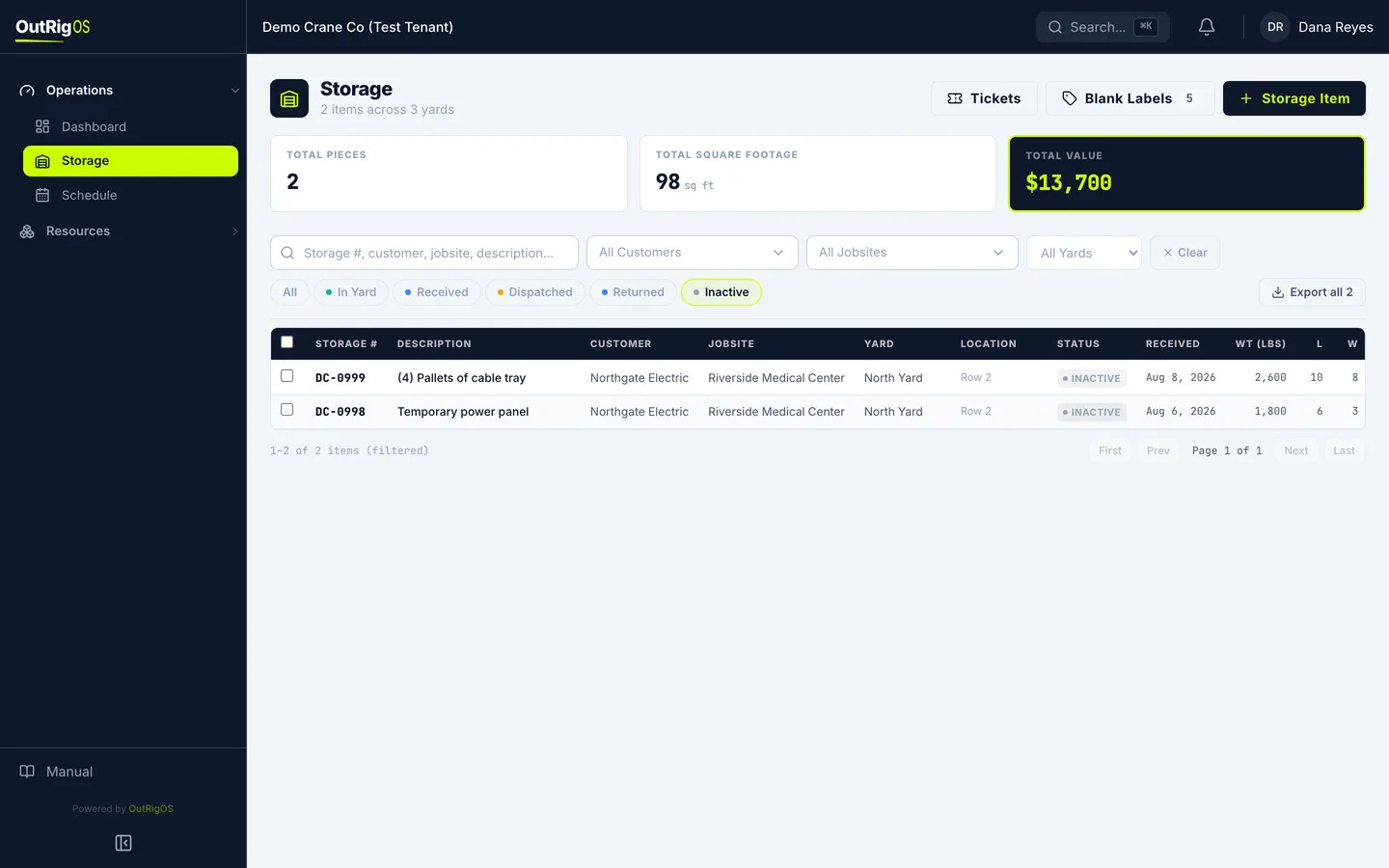
The buttons below the filters narrow the list by status. In Yard means it is here, Received means it just came in, Dispatched means it went out to the job, and Returned means it came back.
See what has left
Items that have left stay on file. Click Inactive to see them. Admins also see Voided, for anything that was voided.
Open an item
Click All to go back to the full list, then click any row to open that item.
Read the item’s page
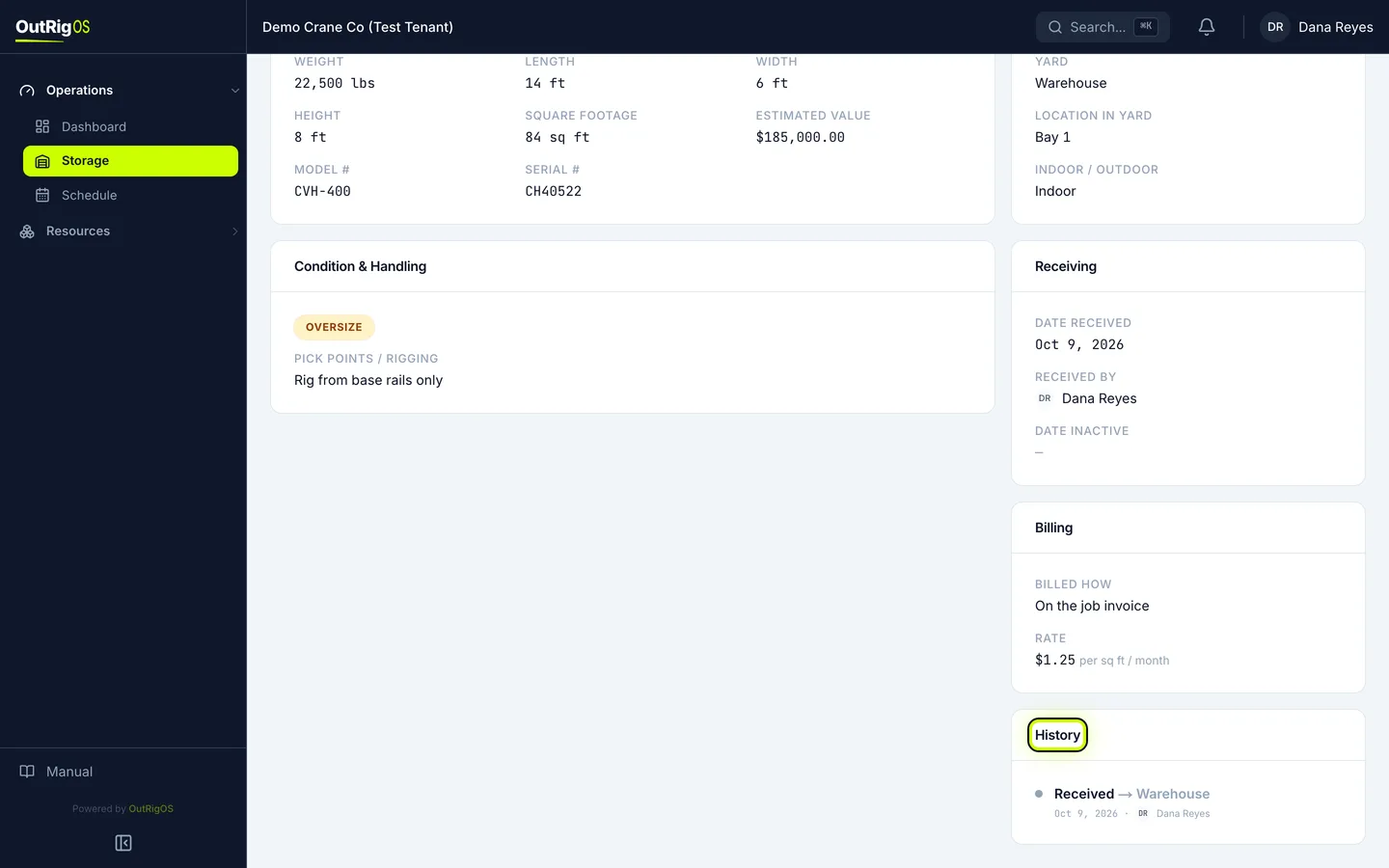
The item’s page has its Specifications, its Location, how it came in under Receiving, and its History.