Set up labels and the scan message
Choose your storage number prefix and label paper, and what strangers see when they scan.
Who can do this: Storage, Admin
Open Storage Settings
Open the menu under your name and click Settings, then click Storage.
Set the prefix
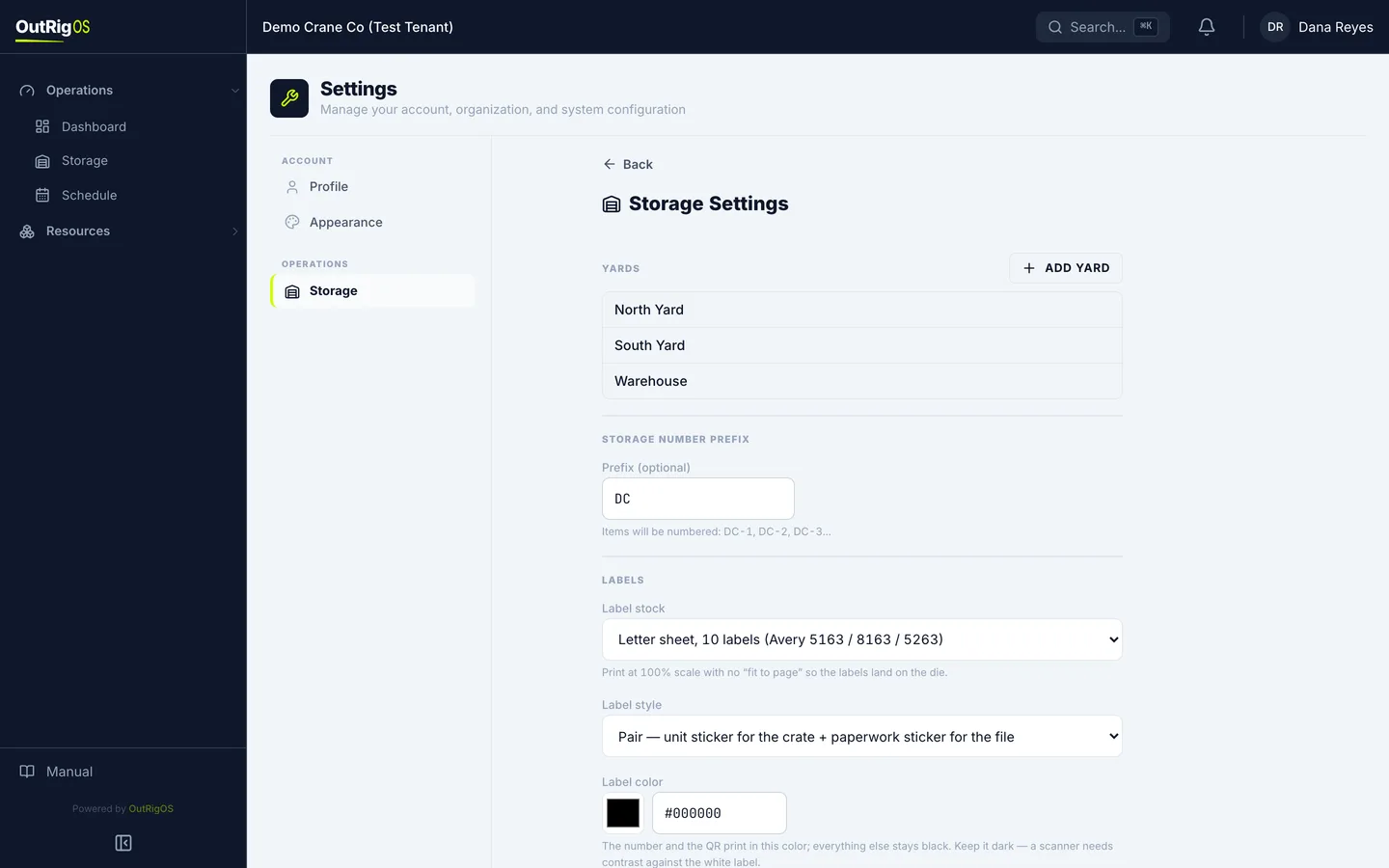
Prefix goes in front of every new storage number. Items already on file keep theirs.
Pick the label paper
Label stock is the paper you print on: a roll, one label at a time, or a letter sheet of ten.
Pick the label style
Label style is one sticker, or a pair: one for the unit and one for the paperwork.
Pick a color
Label color sets the color of the number and QR code. Keep it dark, or a scanner cannot read it.
Set the paperwork lines
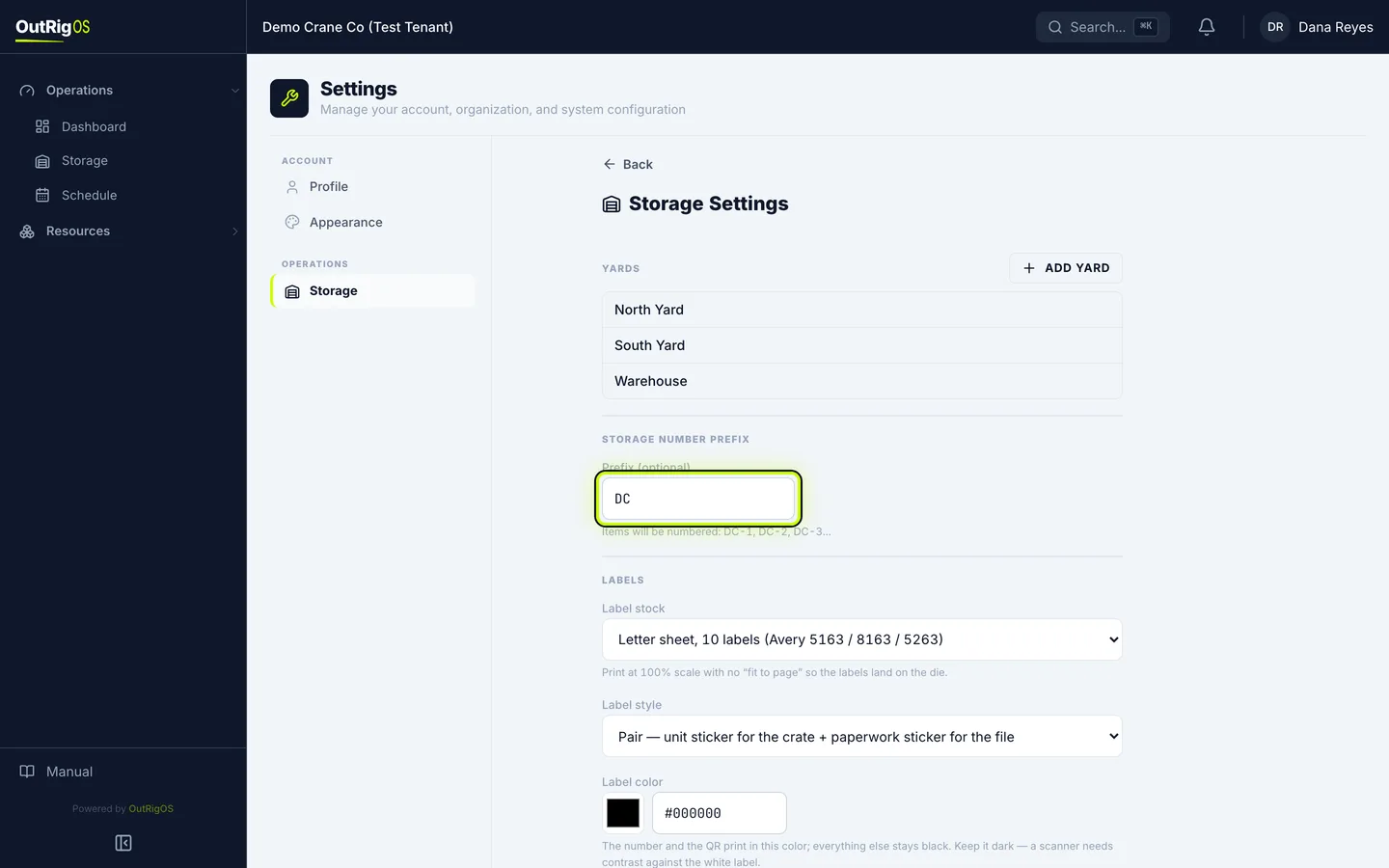
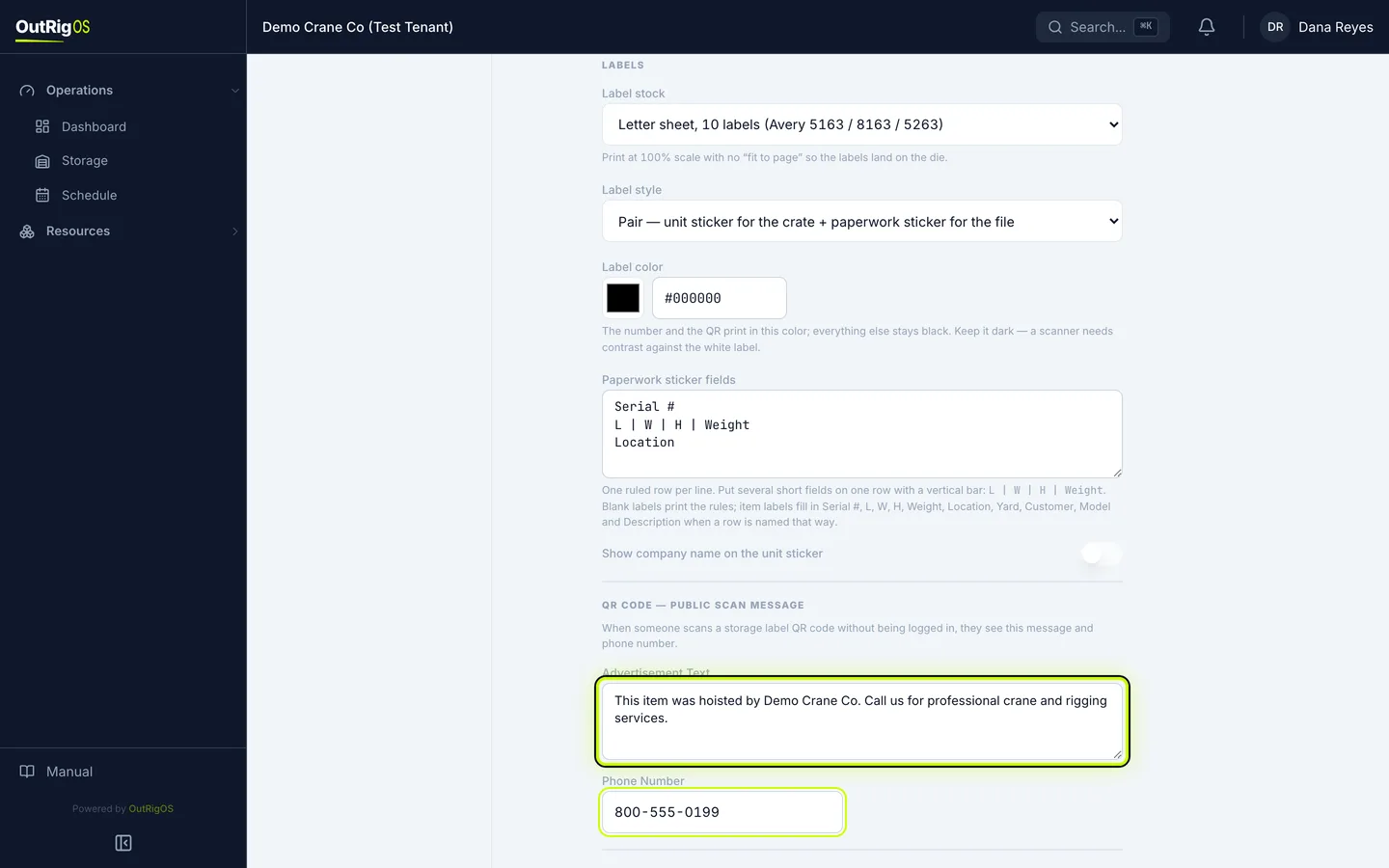
On a pair, Paperwork sticker fields are the lines on the paperwork sticker. Each line is a row, and a vertical bar puts several on one row.
Write the scan message
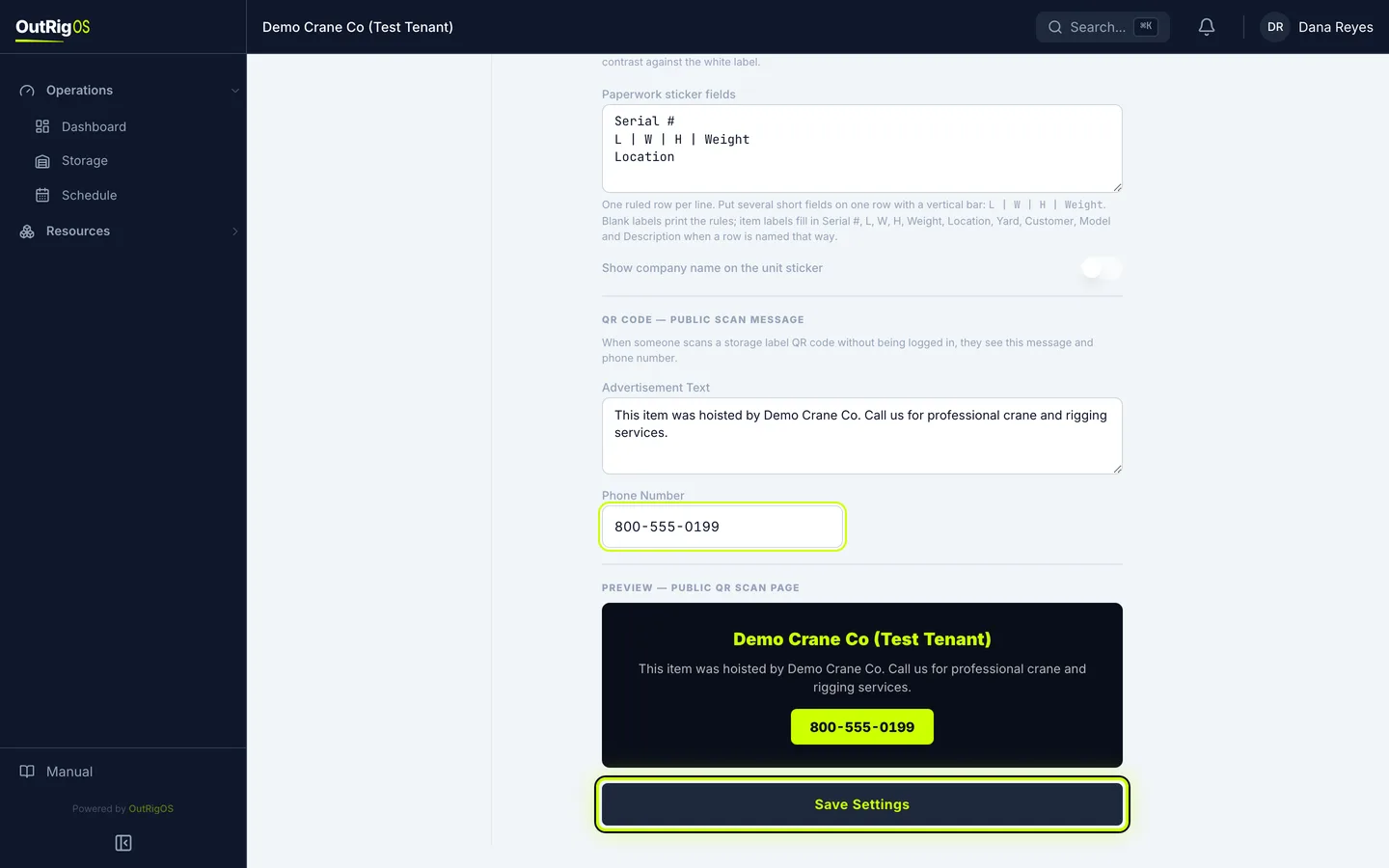
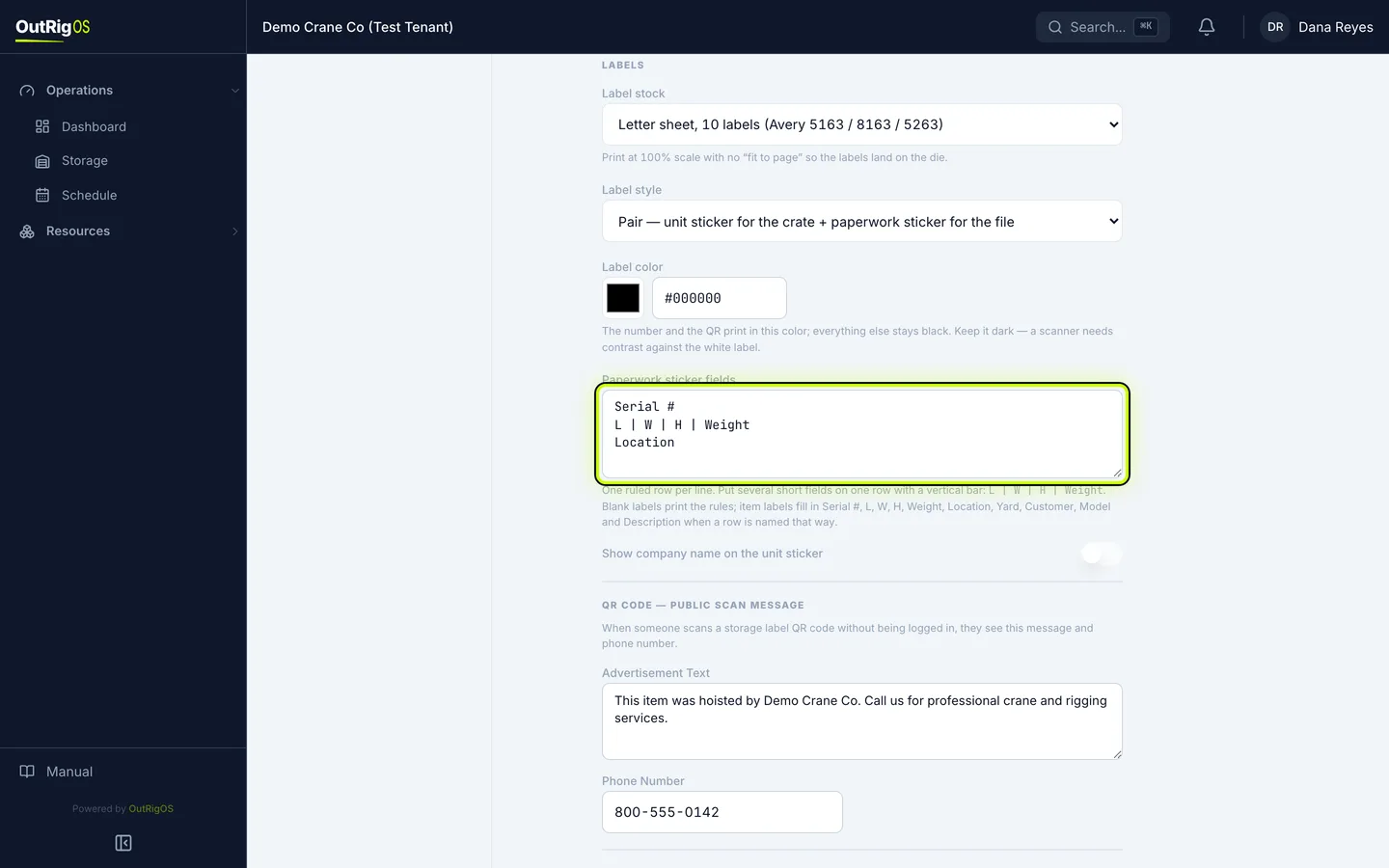
When someone outside your company scans a sticker, they see your company name, Advertisement Text and Phone Number. A sticker can outlast the job by years, so this is how it earns you a call.
Check the preview and save
The preview shows what they will see. Click Save Settings.