Do a shop inspection
Run the full check when a machine comes back or before it goes out, with photos all the way around.
Who can do this: Field, Shop, Safety, Admin
Start a Shop Inspection
Open the menu and tap My Inspections. Tap New Inspection, then choose Shop Inspection.
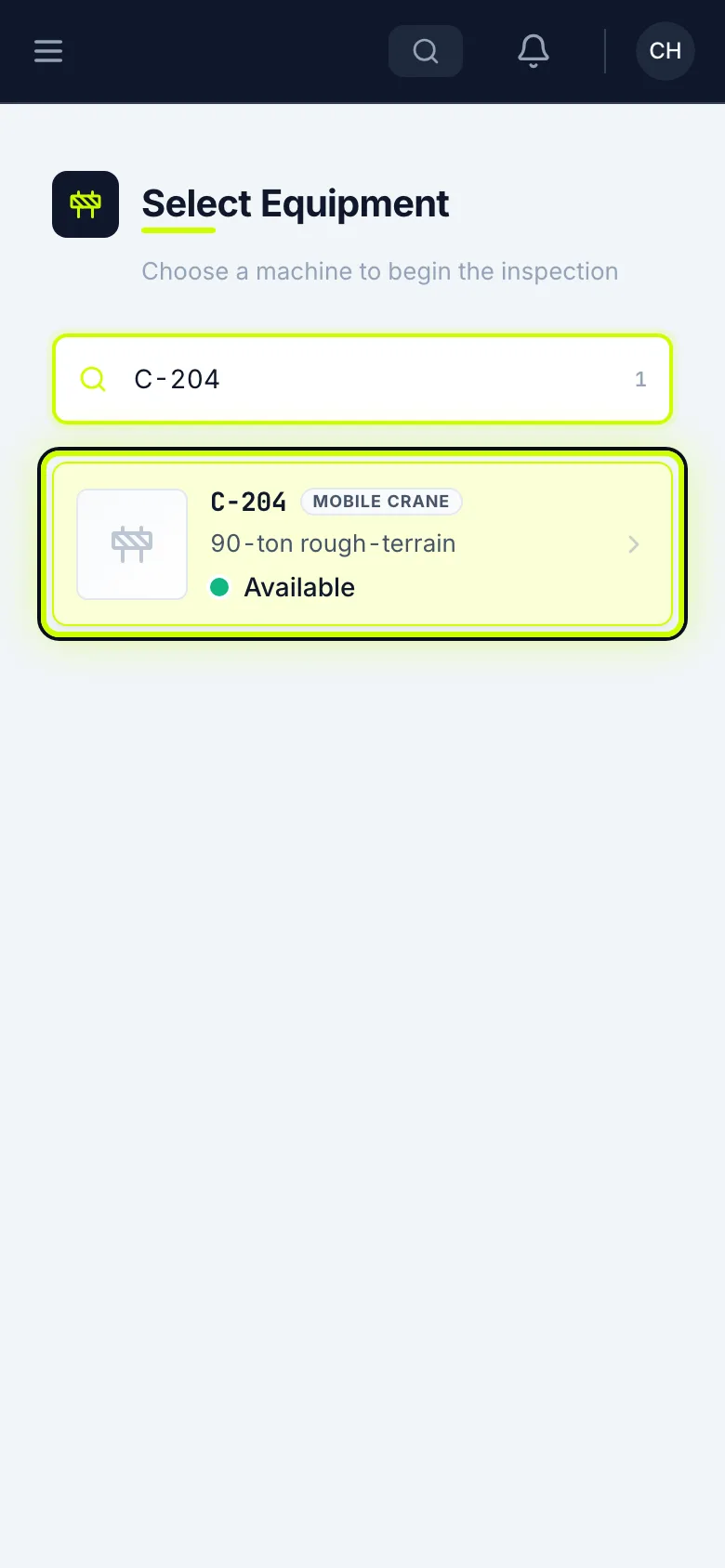
Pick the machine
Search for the machine’s number and tap it.
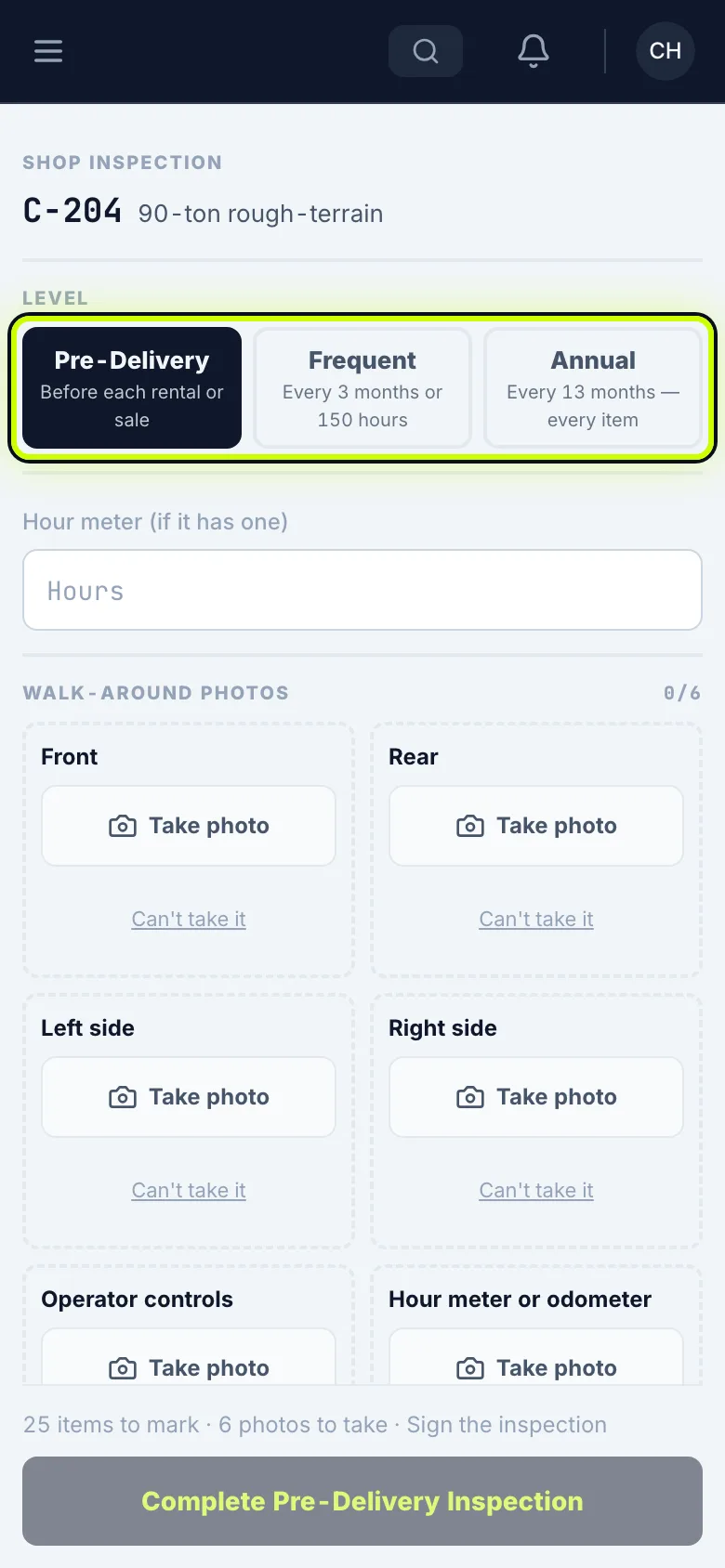
Pick the level
Pick the level: Pre-Delivery before each rental or sale, Frequent every 3 months or 150 hours, Annual for every item.
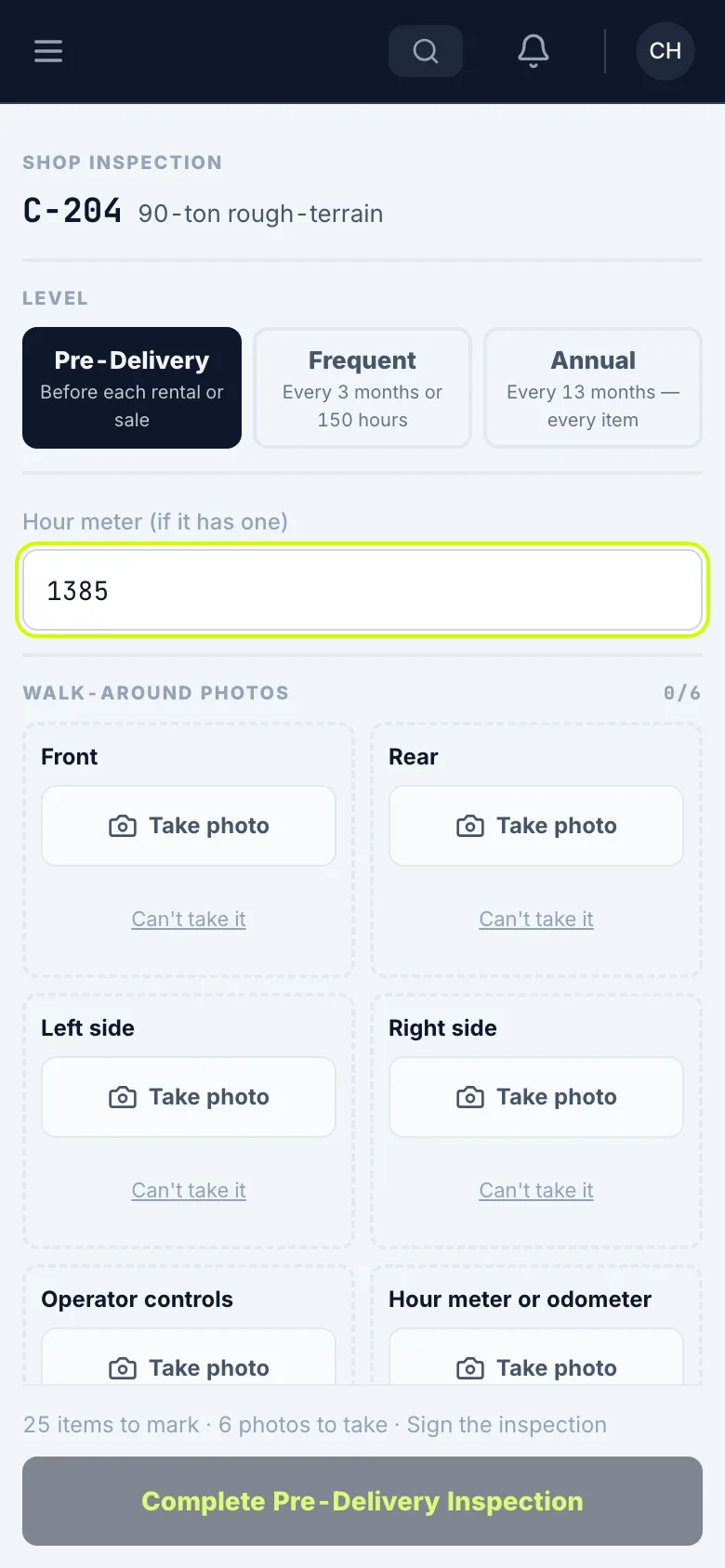
Enter the hour meter
In Hour meter (if it has one), enter 1385.
Take the walk-around photos
Tap Take photo for each one. If you can’t get one, tap Can’t take it and say why.
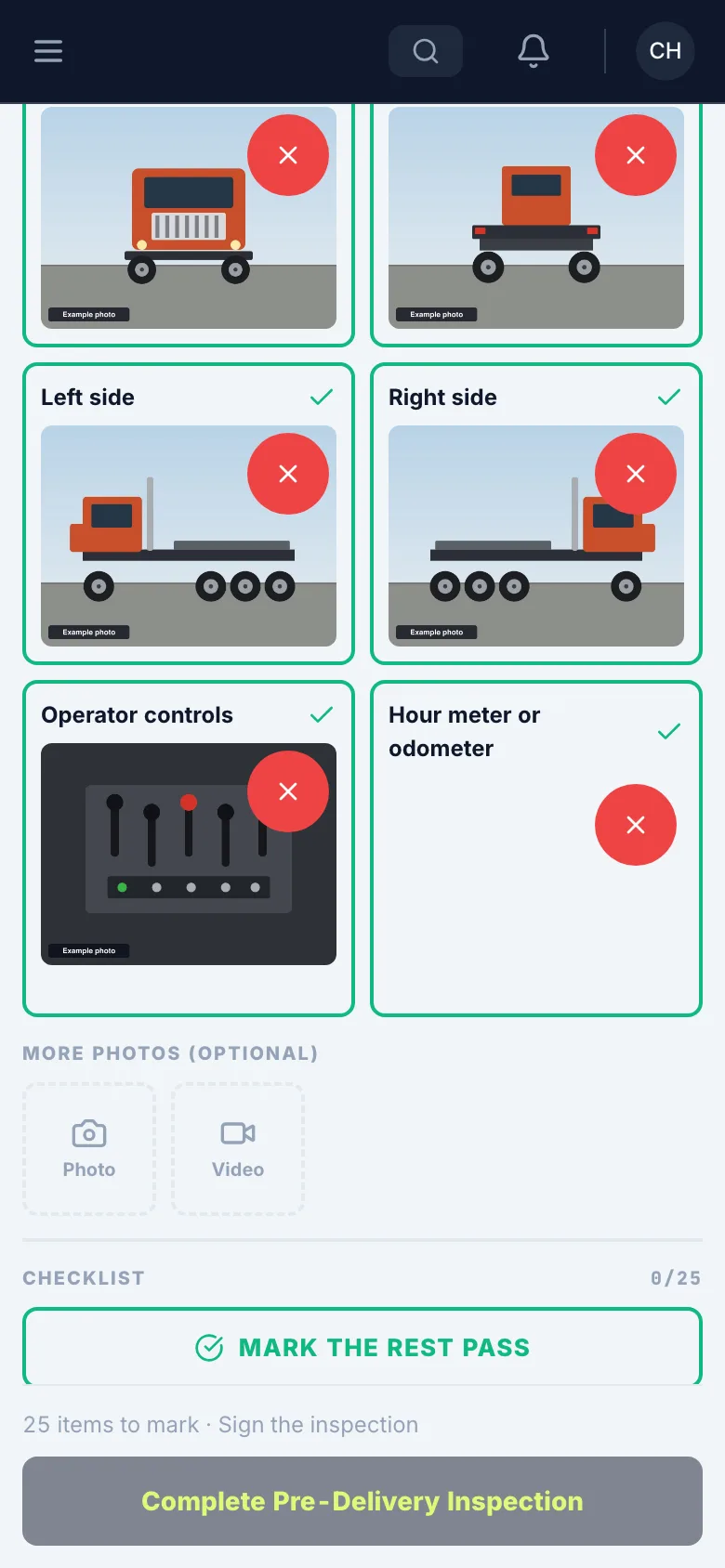
Go down the checklist
Answer every item: Pass, Fail, Corrected or N/A.
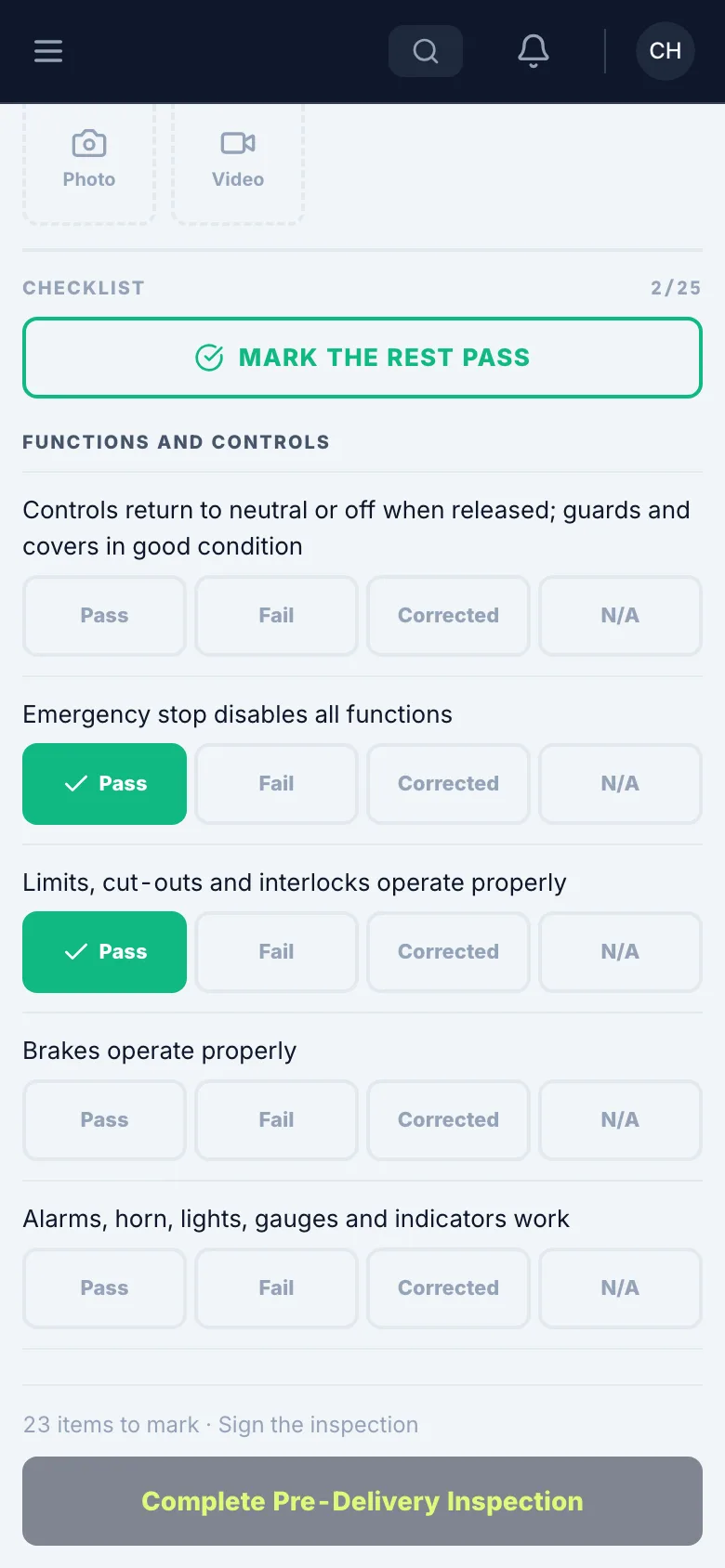
Mark what fails
Tap Fail and add a note. If you fix it right there, tap Corrected instead.
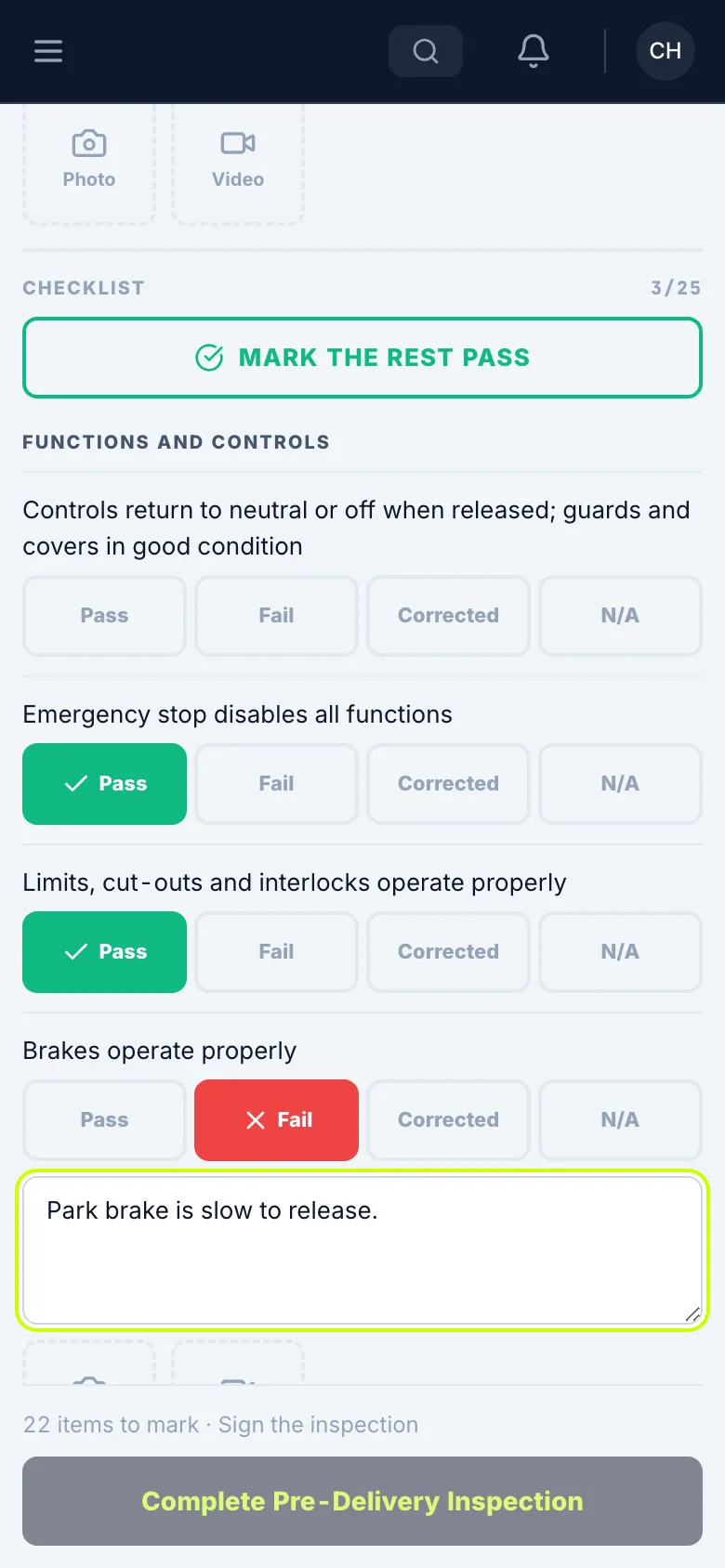
Mark the rest
Once you’ve checked the rest and they’re good, tap Mark the rest Pass.
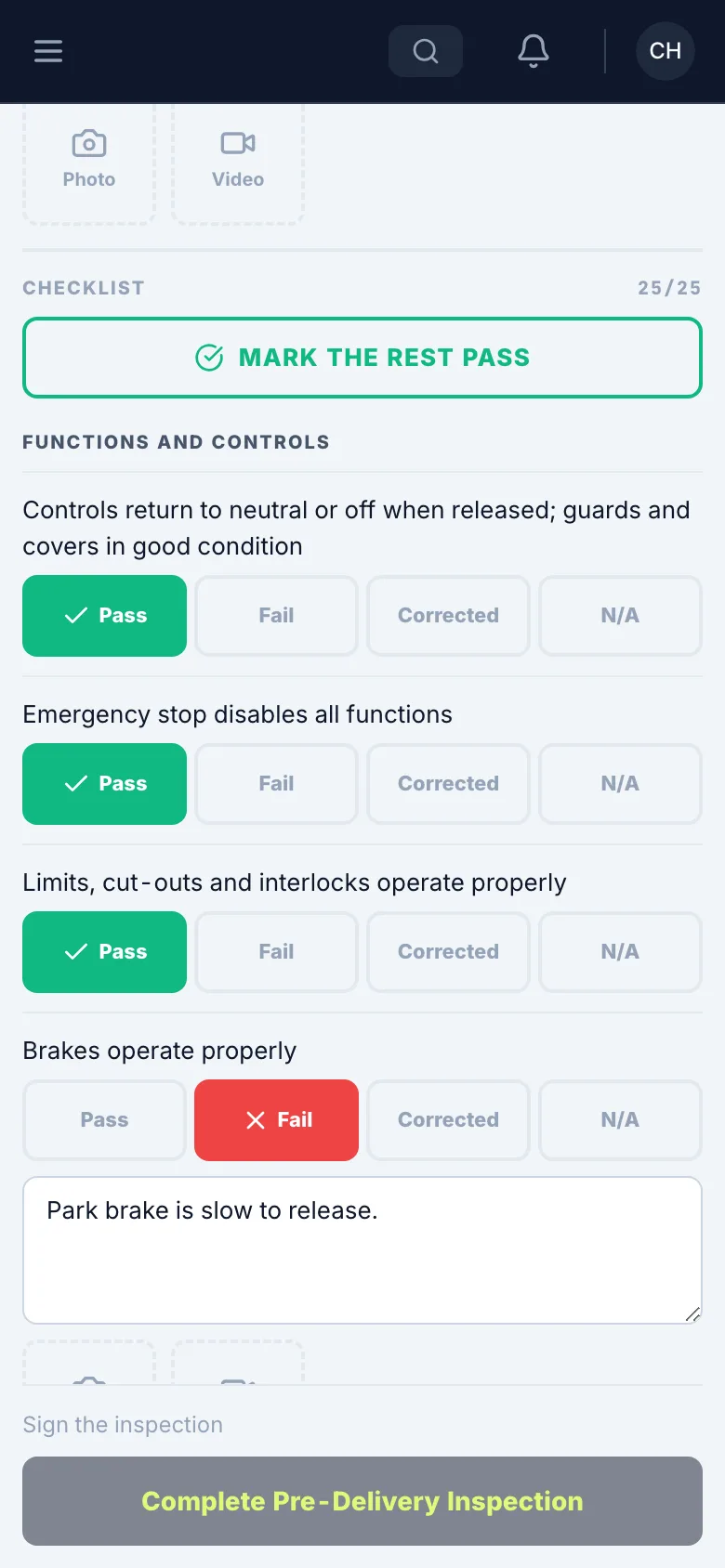
Decide on the machine
Anything left failed goes to the shop. Take the machine out of service starts checked. Uncheck it only if it’s safe to run.
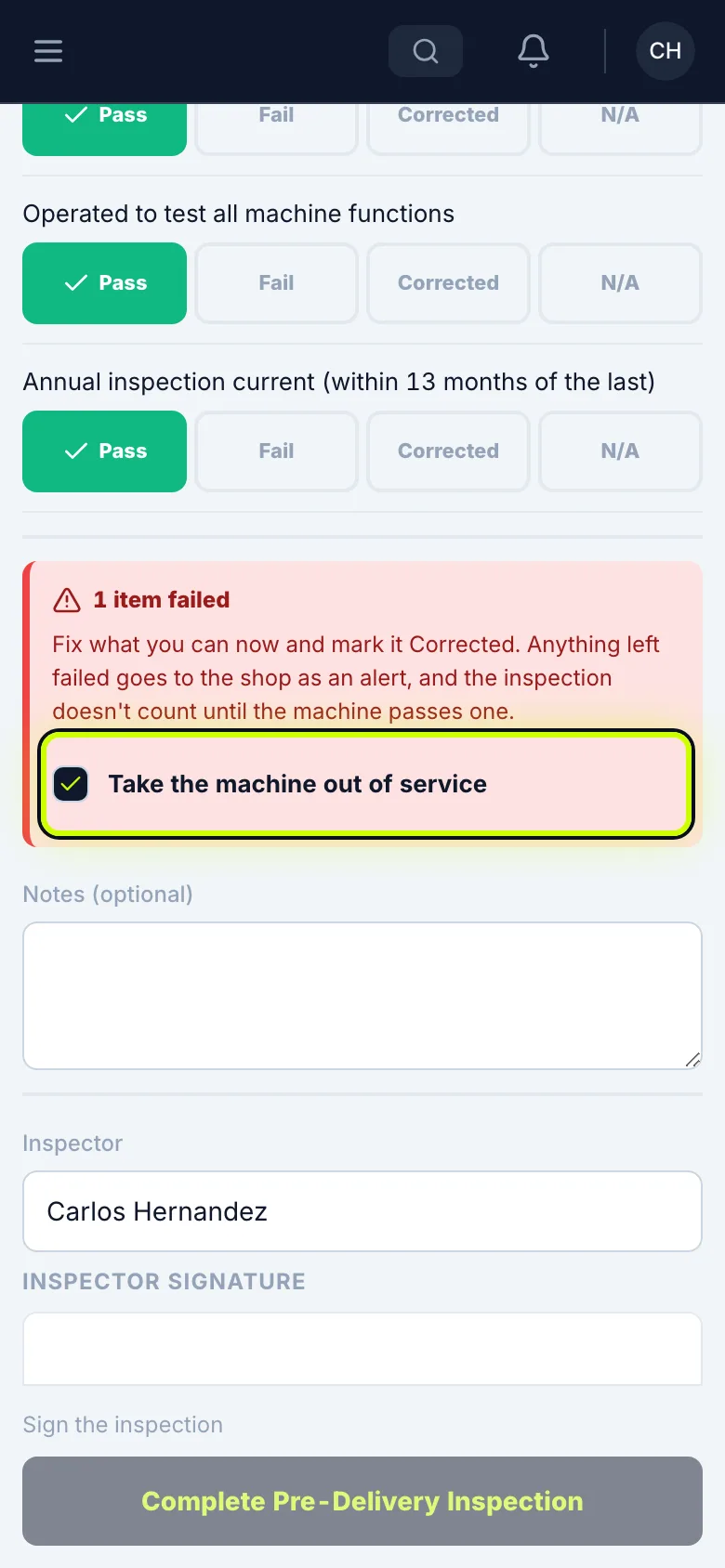
Sign it
Your name is already filled in. Sign under Inspector signature.
A signature saves by itself a moment after you stop. Confirm Signature saves it right away.
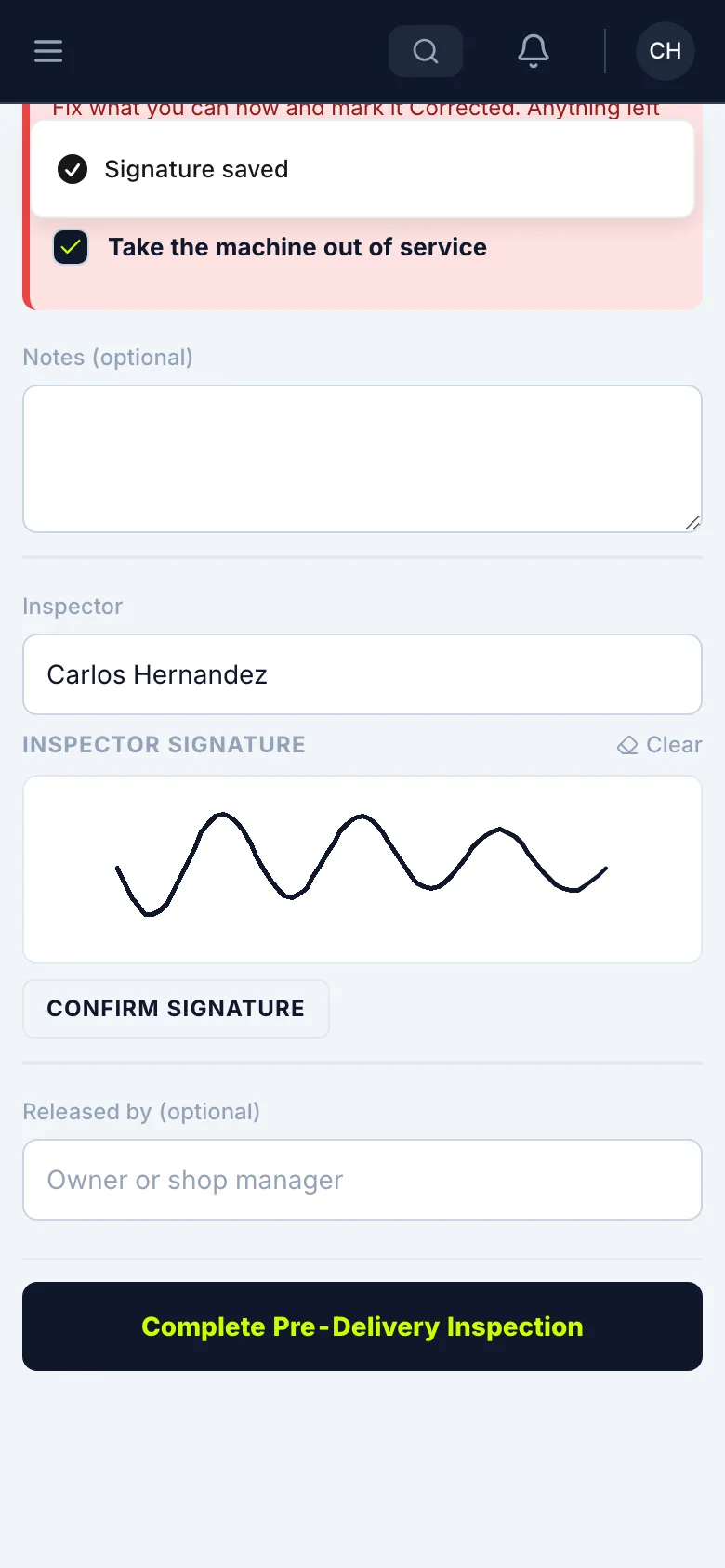
Complete the inspection
Tap Complete Pre-Delivery Inspection. The button names the level you picked.
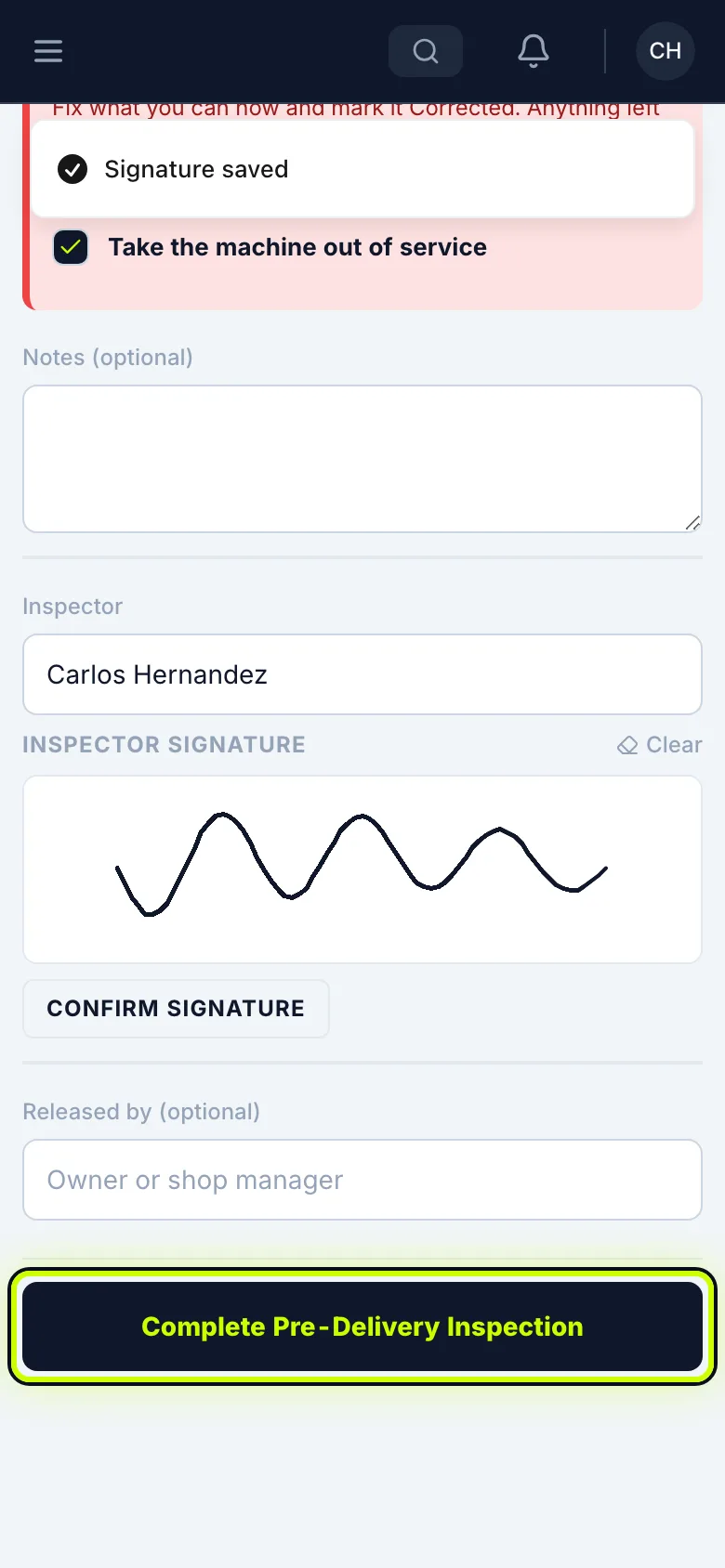
See the record
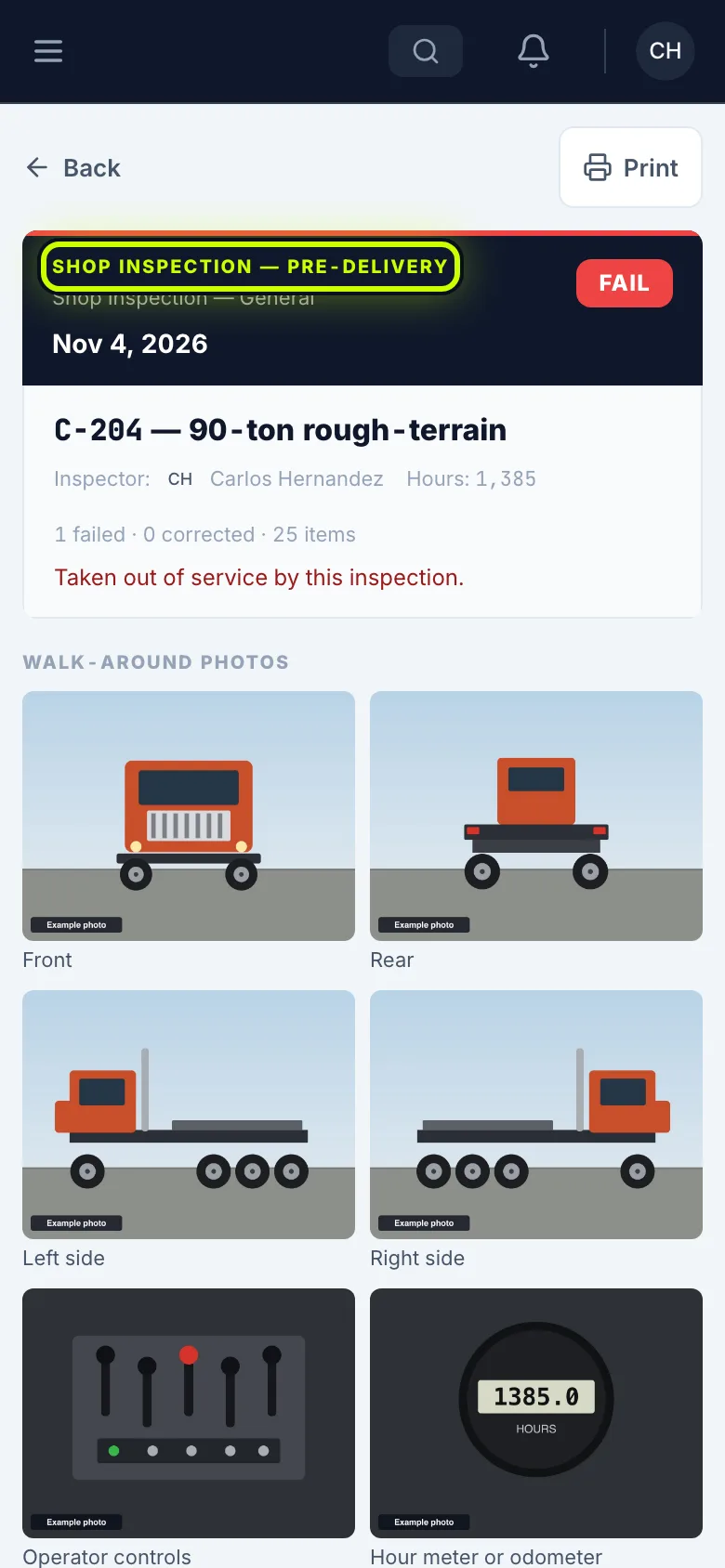
The record opens with your photos, your answers and your signature. With a failed item, it doesn’t count until the machine passes one.