Fill out a DVIR
Do your pre-trip or post-trip on your truck, and report anything wrong, from your phone.
Who can do this: Field, Shop, Safety, Admin
Start a DVIR
Open the menu and tap My Inspections. Tap New Inspection, then choose DVIR (Pre/Post Trip).
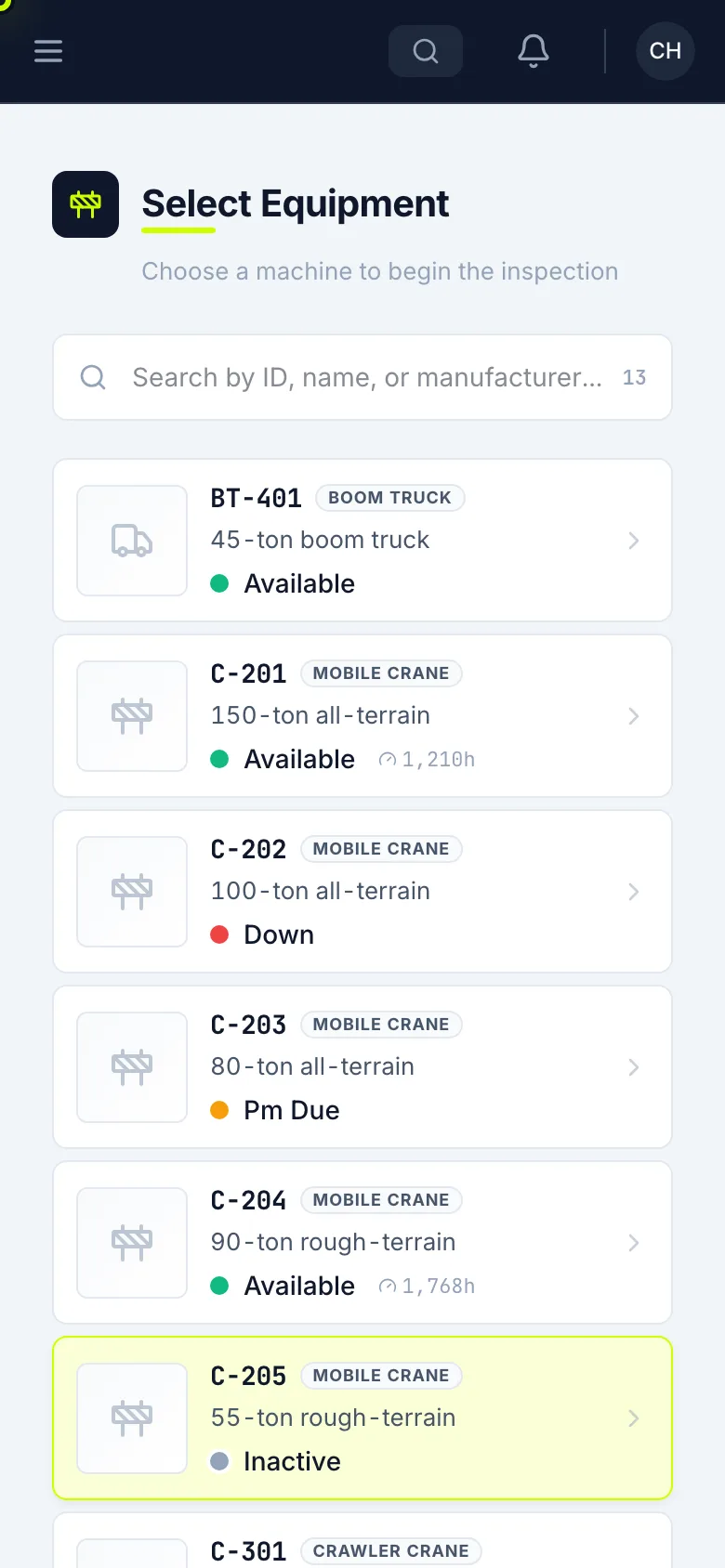
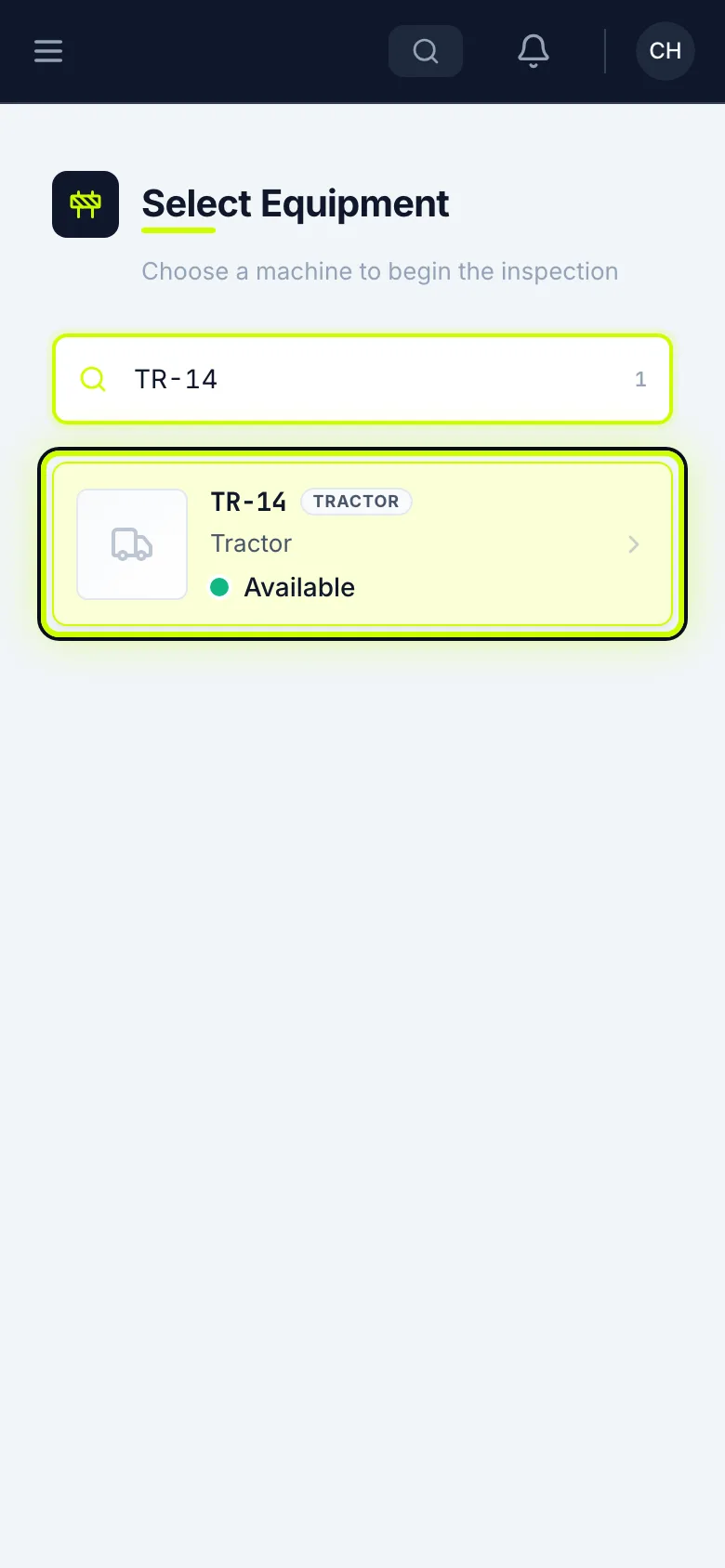
Pick the machine
Search for your truck’s number and tap it.
Pick pre-trip or post-trip
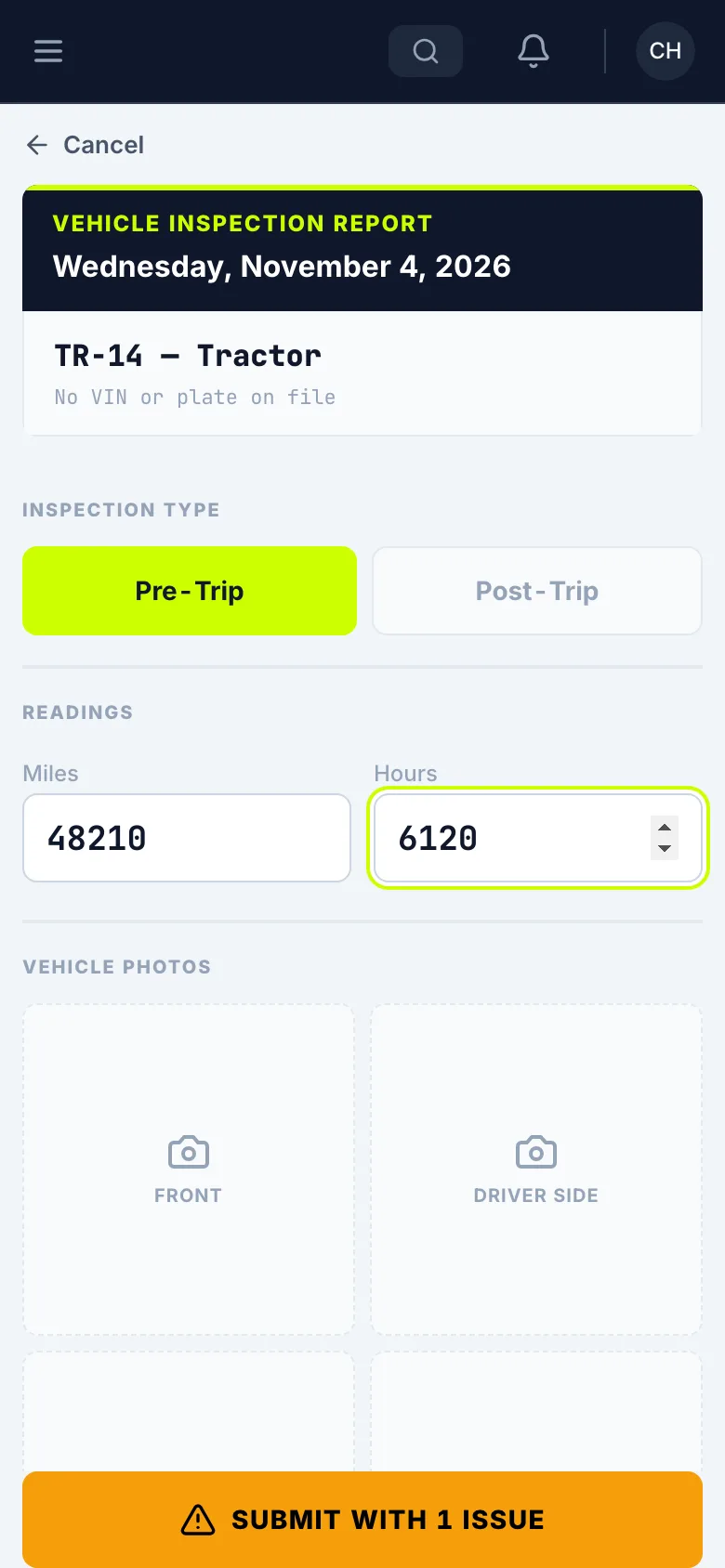
Pick Pre-Trip or Post-Trip, then enter your Miles and Hours.
Take the truck photos
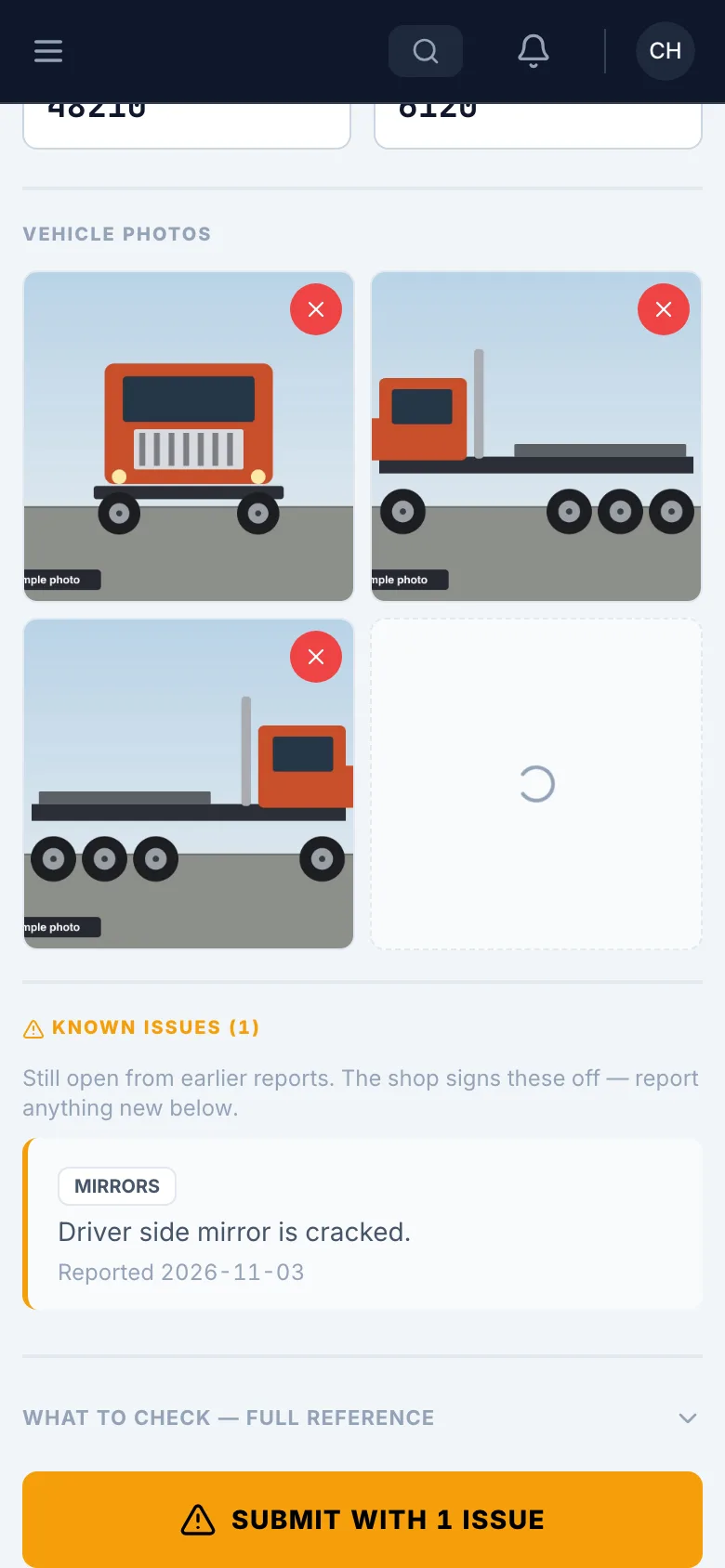
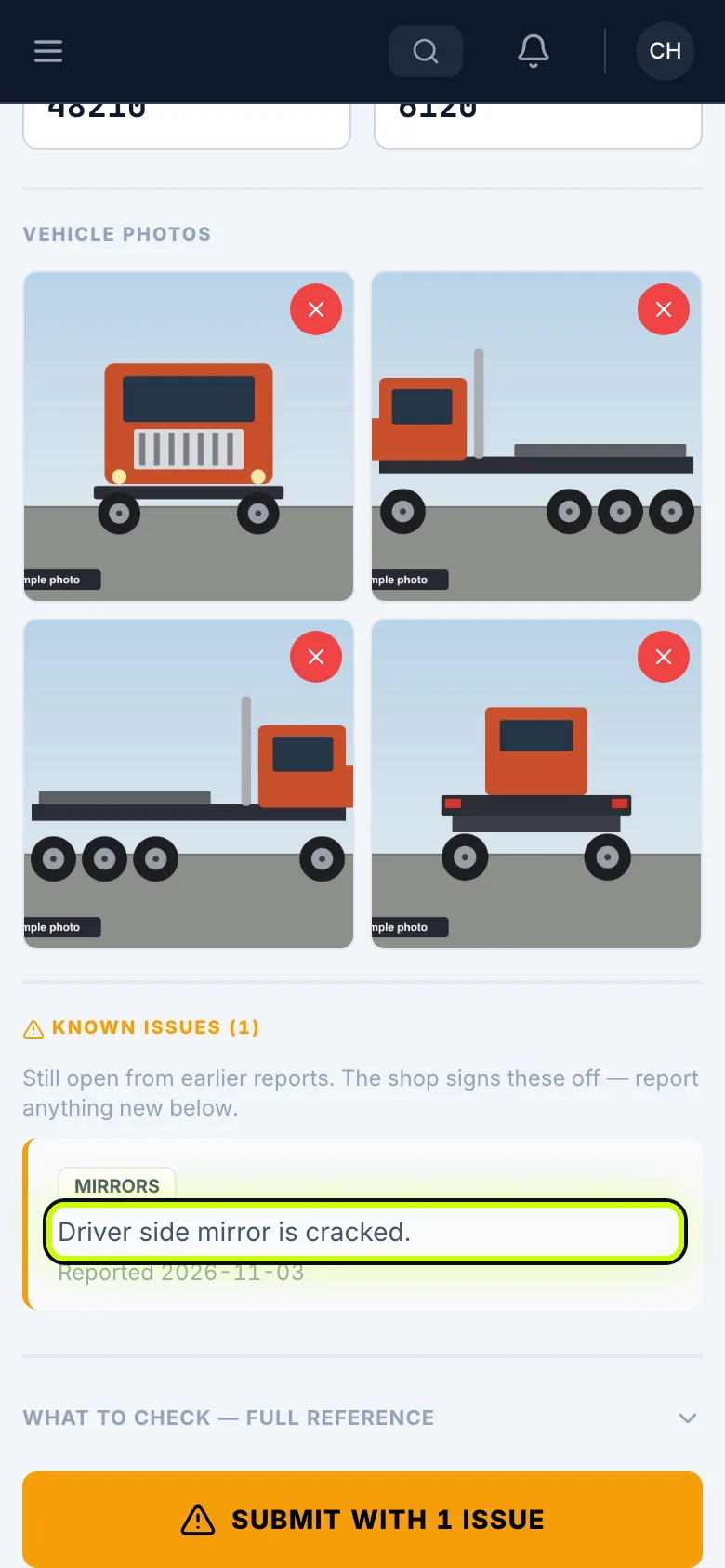
Tap each box and take the photo: Front, Driver Side, Pass. Side and Rear.
Check for known issues
Anything an earlier report left open shows as a Known Issue. You don’t clear those. The shop signs them off.
Report an issue
Tap Report Issue.
Describe the issue
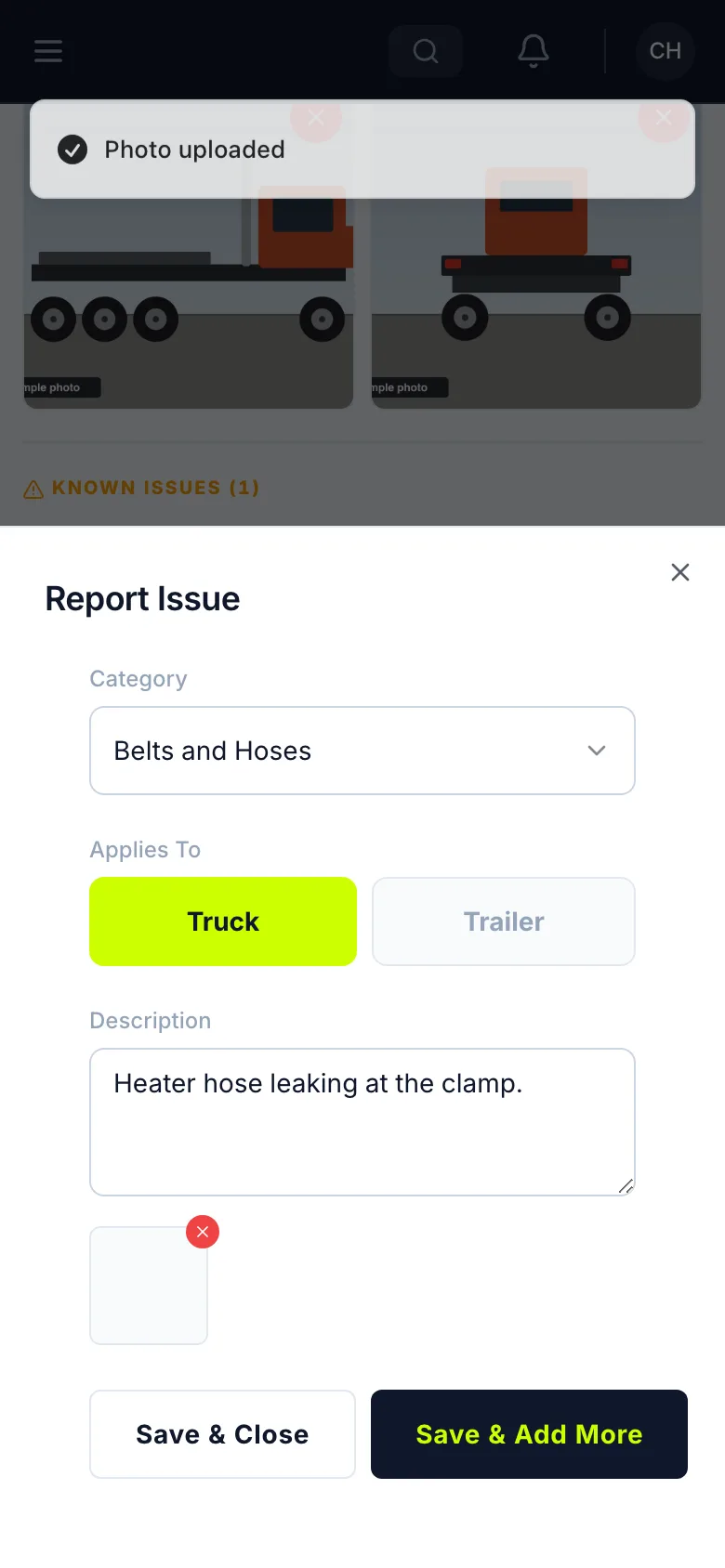
Pick the Category, choose Truck or Trailer, describe it, and tap Add Photo if you can.
Save the issue
Tap Save & Close. If there’s more, tap Save & Add More instead.
Sign it
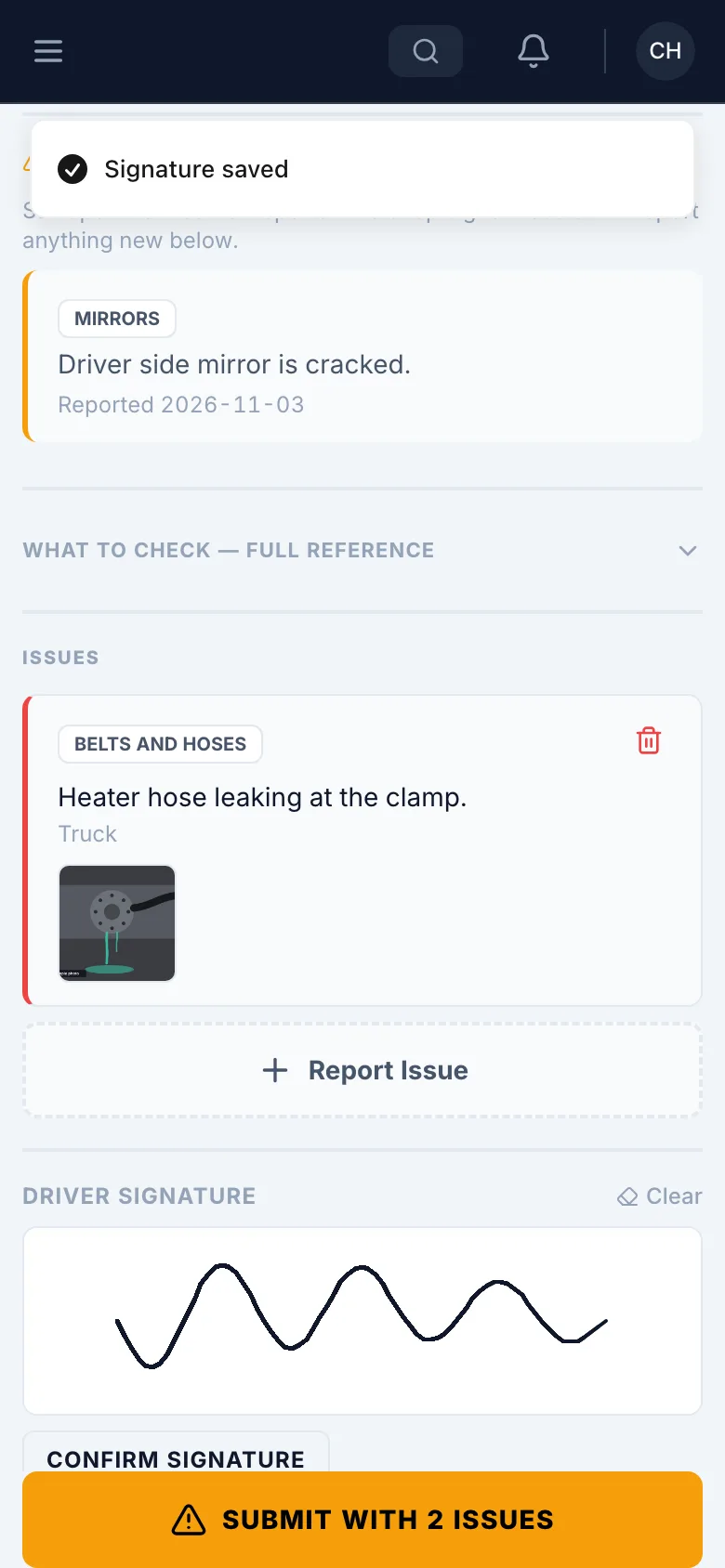
Sign under Driver Signature.
A signature saves by itself a moment after you stop. Confirm Signature saves it right away.
Submit
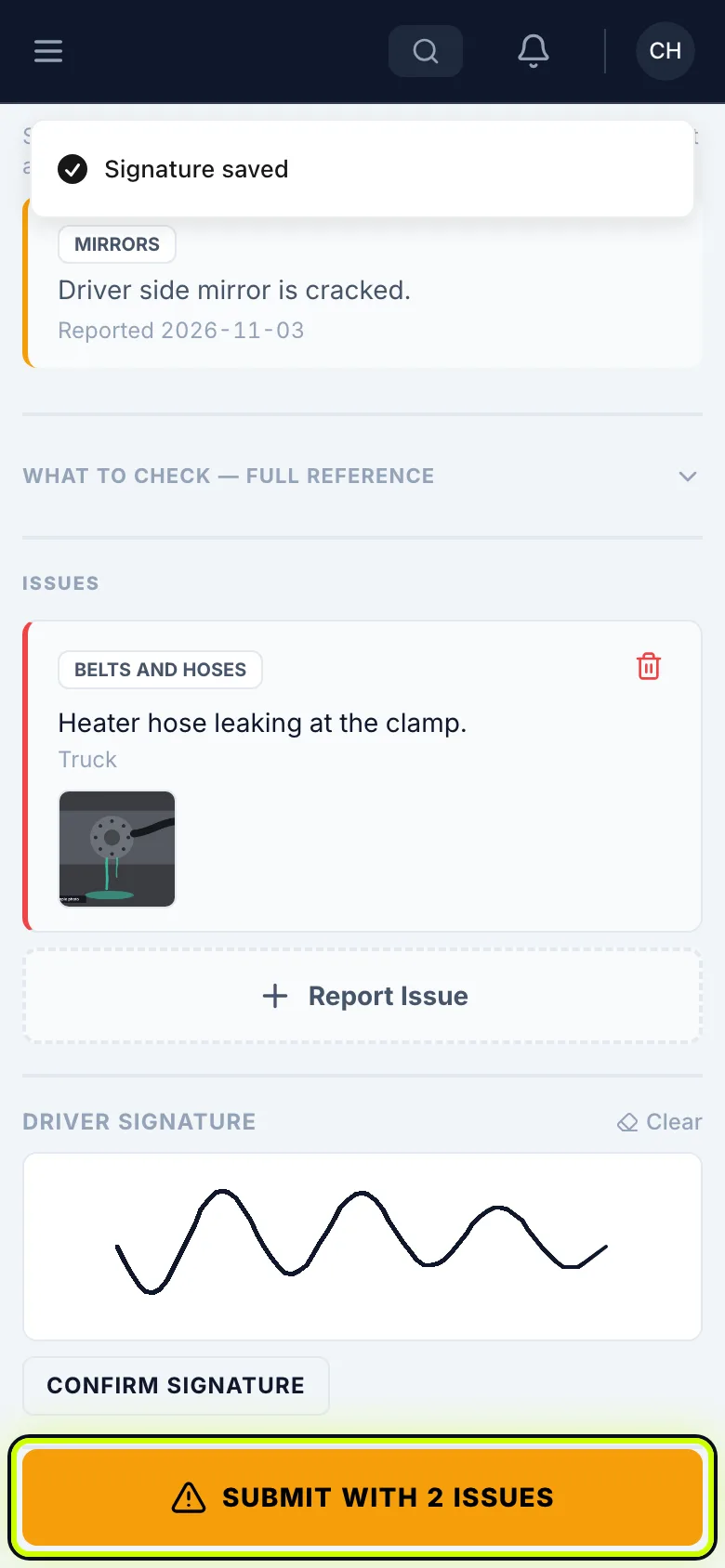
Tap the submit button. With nothing wrong, it says Submit Clean. With an issue, it shows how many.
Done
DVIR submitted means it went through, and the shop has your issue.