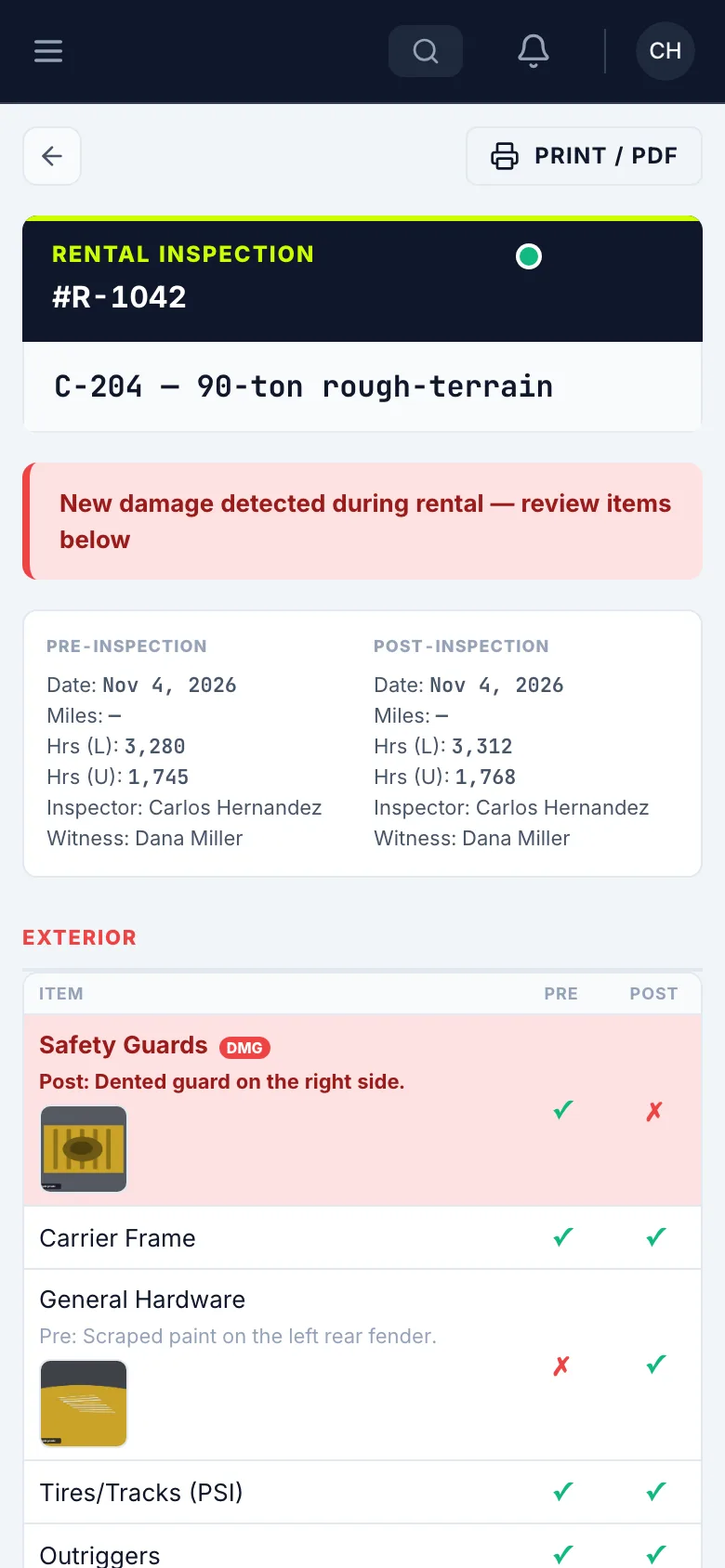
Rental inspection at pick-up
Walk a rental machine again when it comes back, so any new damage is flagged against what was there at drop-off.
Who can do this: Field, Shop, Safety, Admin
Find the rental
Open the menu and tap My Inspections. Tap the Rental tab, and open the rental.
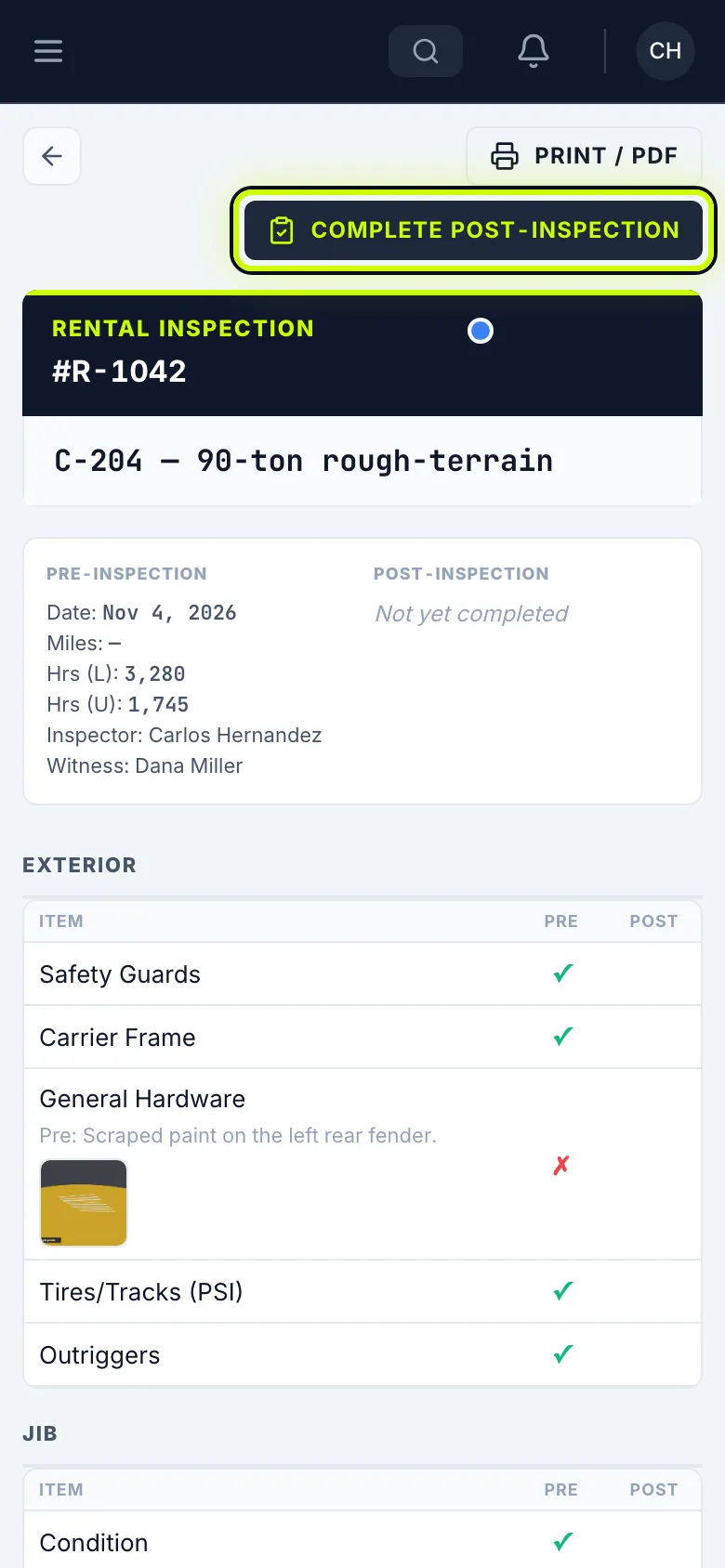
Start the post-inspection
Tap Complete Post-Inspection.
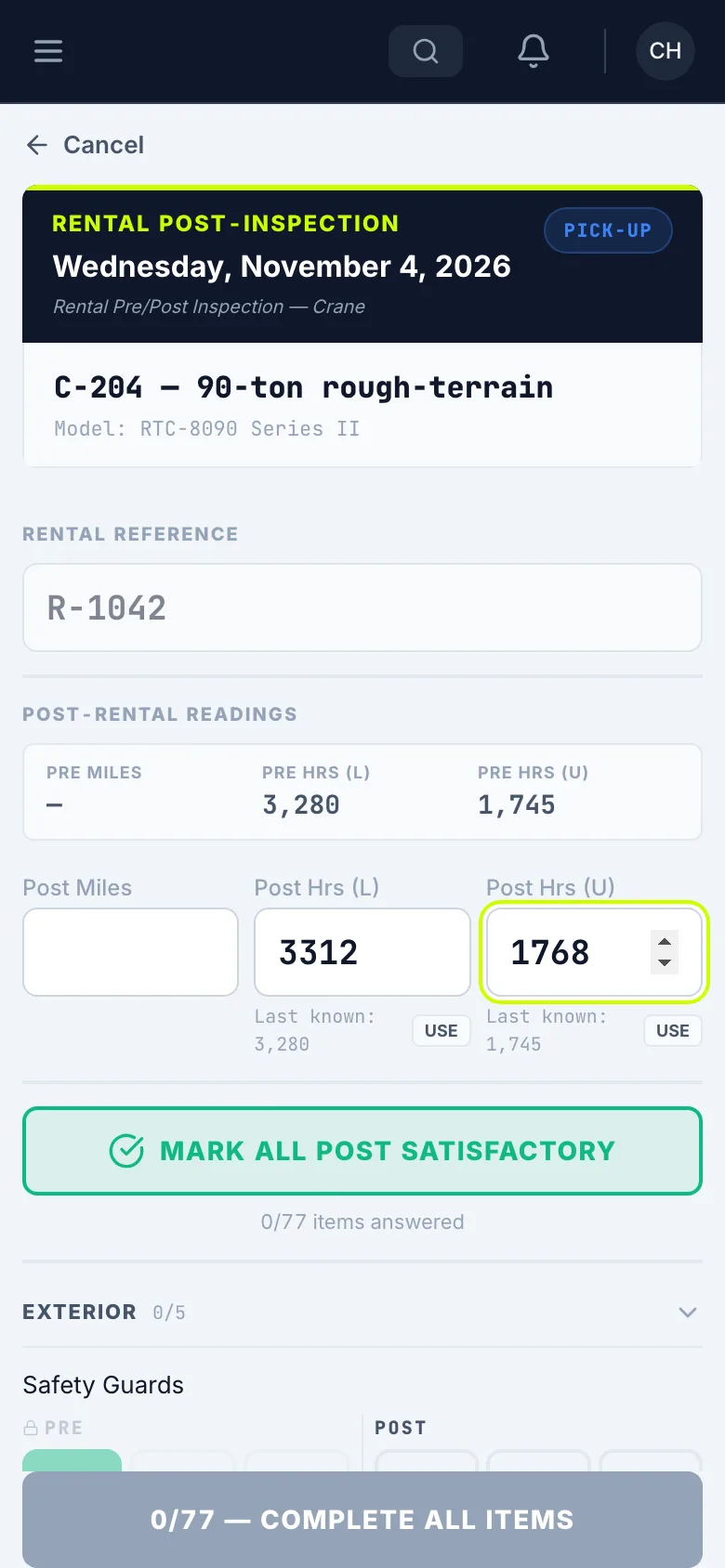
Enter the readings
Enter the readings off the machine.
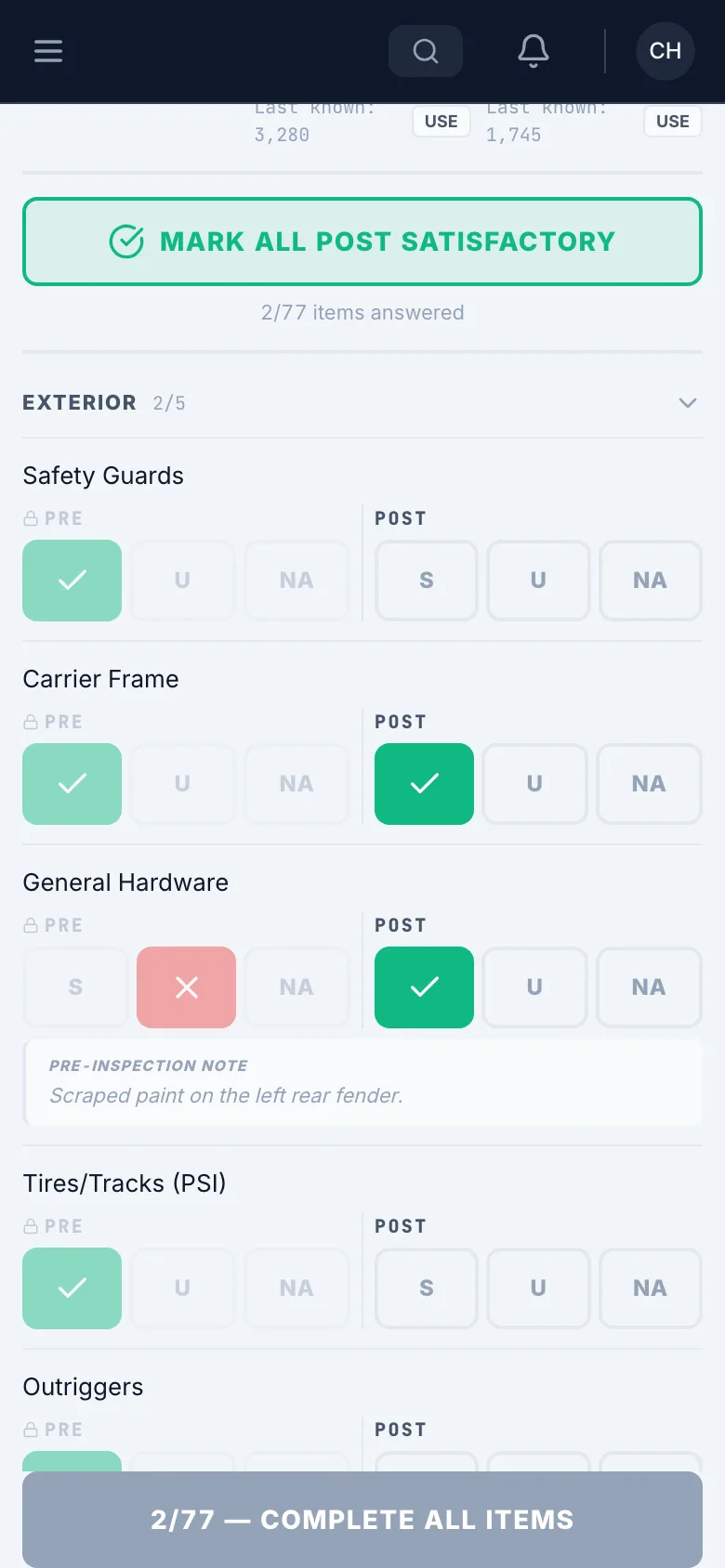
Walk it again
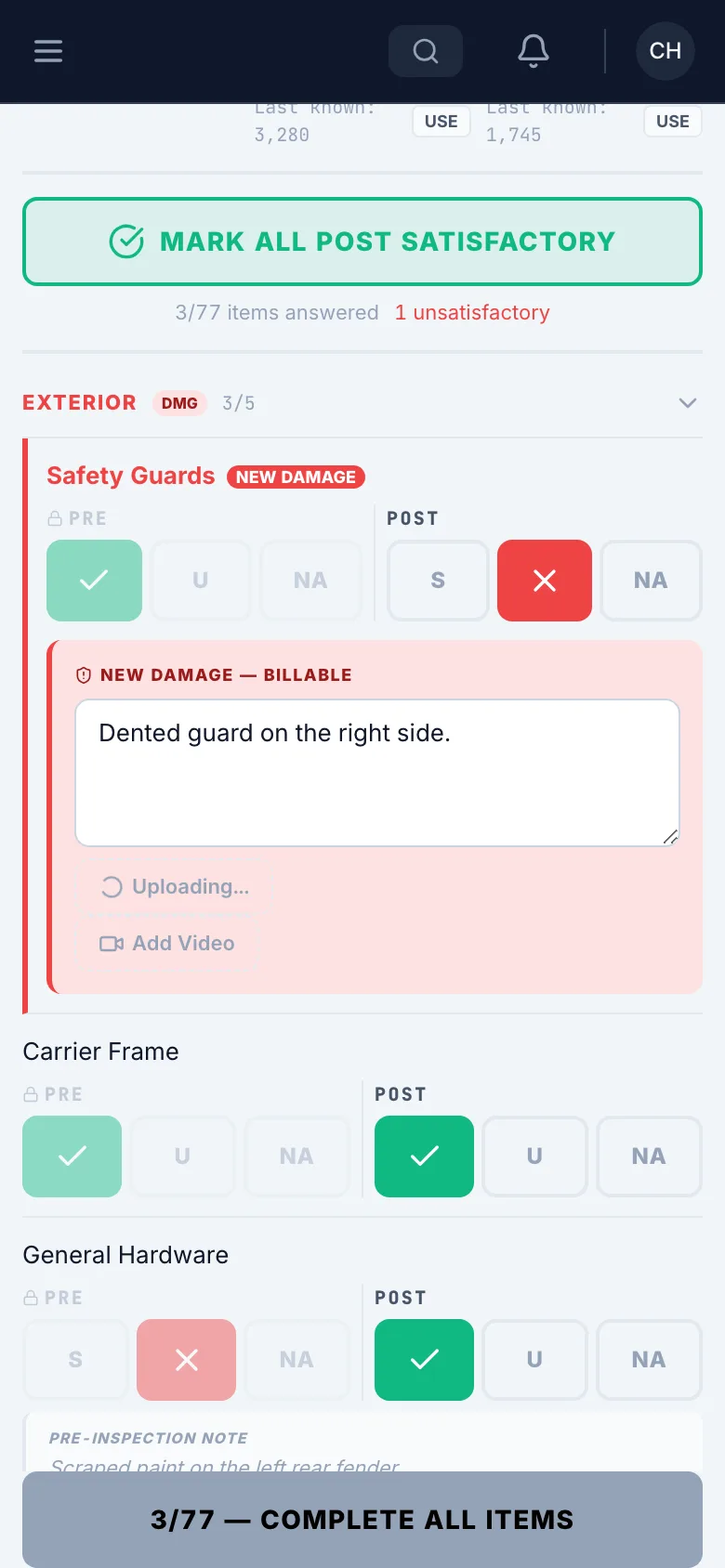
Walk it with the customer again and answer each item under POST. What you marked at drop-off is right next to it.
Mark new damage
If it was fine at drop-off and it isn’t now, tap U, describe it, and tap Add Photo. That gets flagged as new damage.
Mark the rest
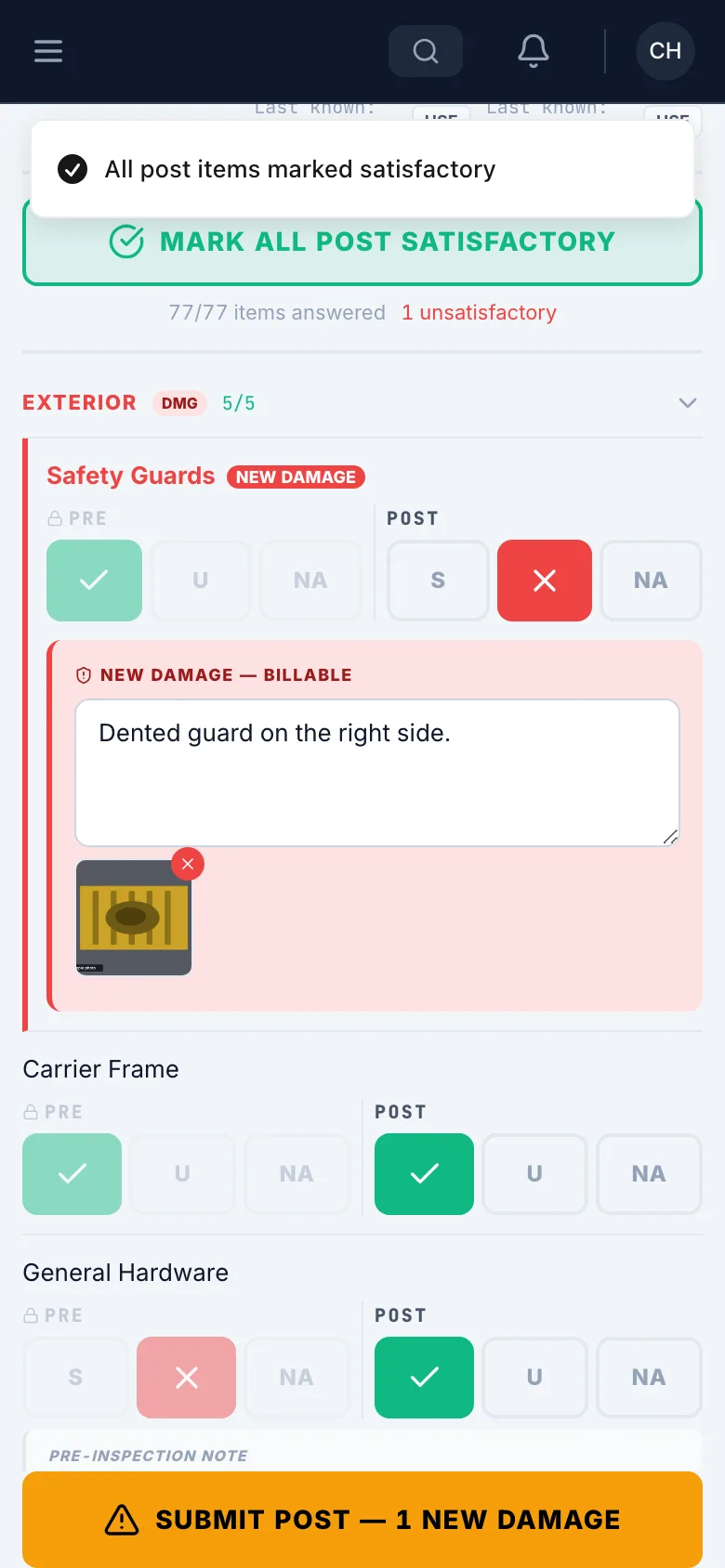
Once you’ve checked the rest and they’re good, tap Mark All Post Satisfactory.
Get the customer’s name
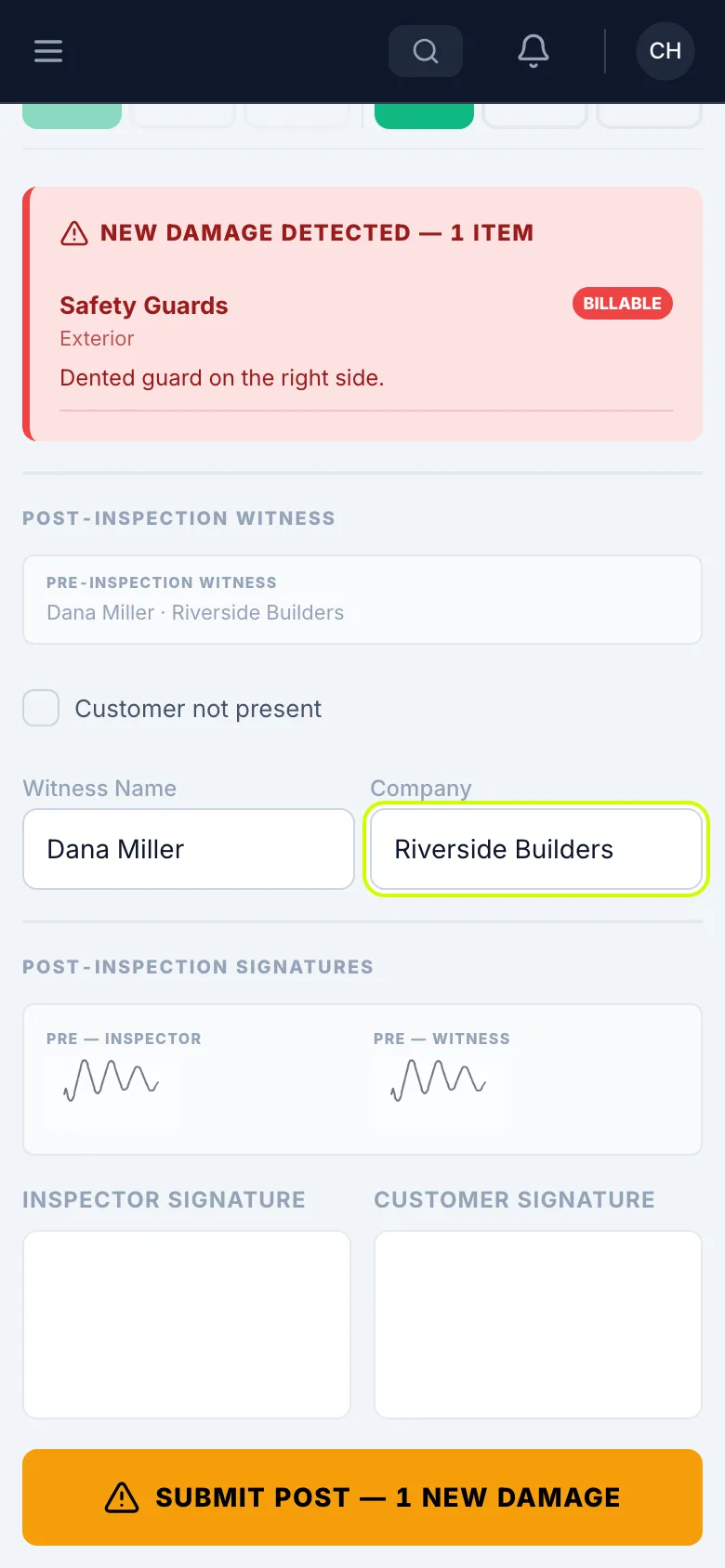
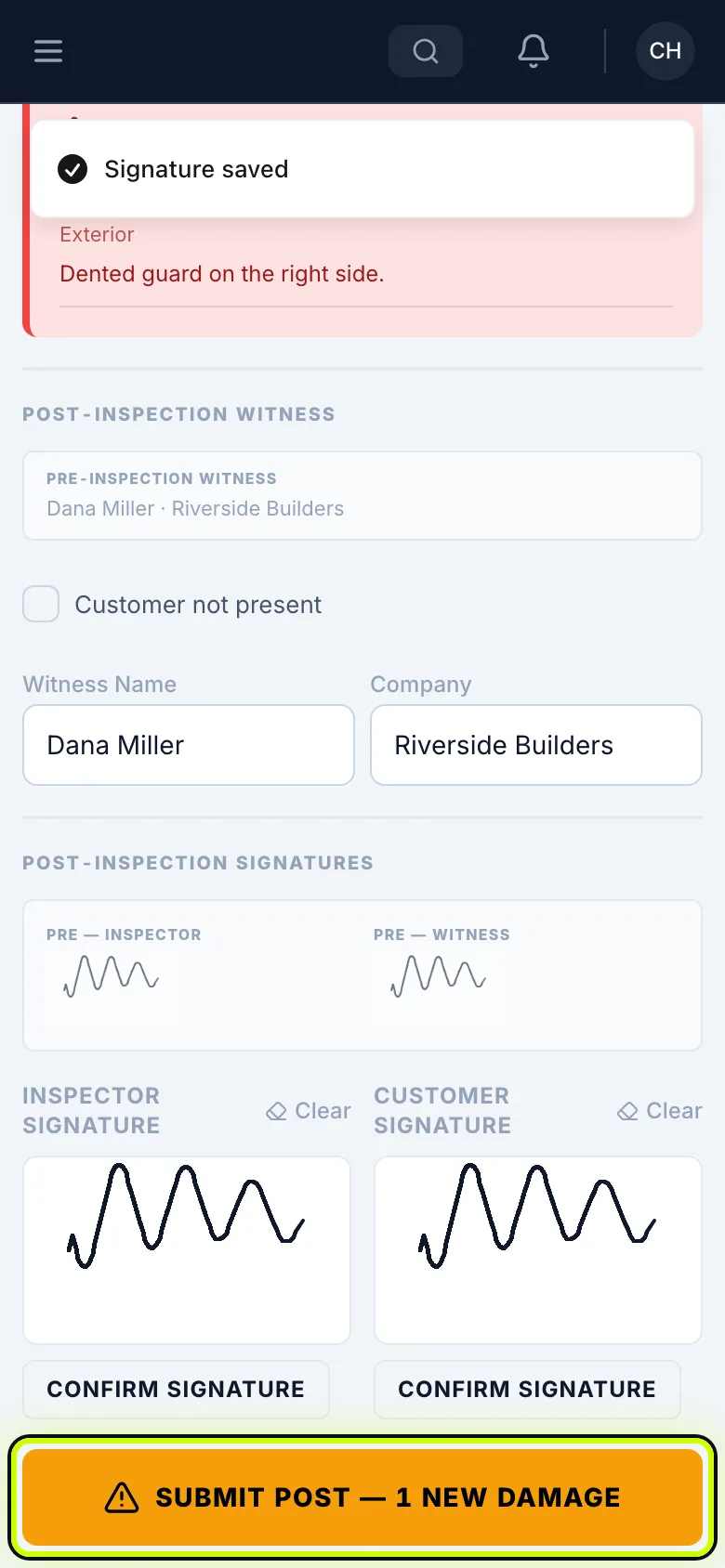
Enter the customer’s Witness Name and Company. If they aren’t there, check Customer not present and say why.
Both of you sign
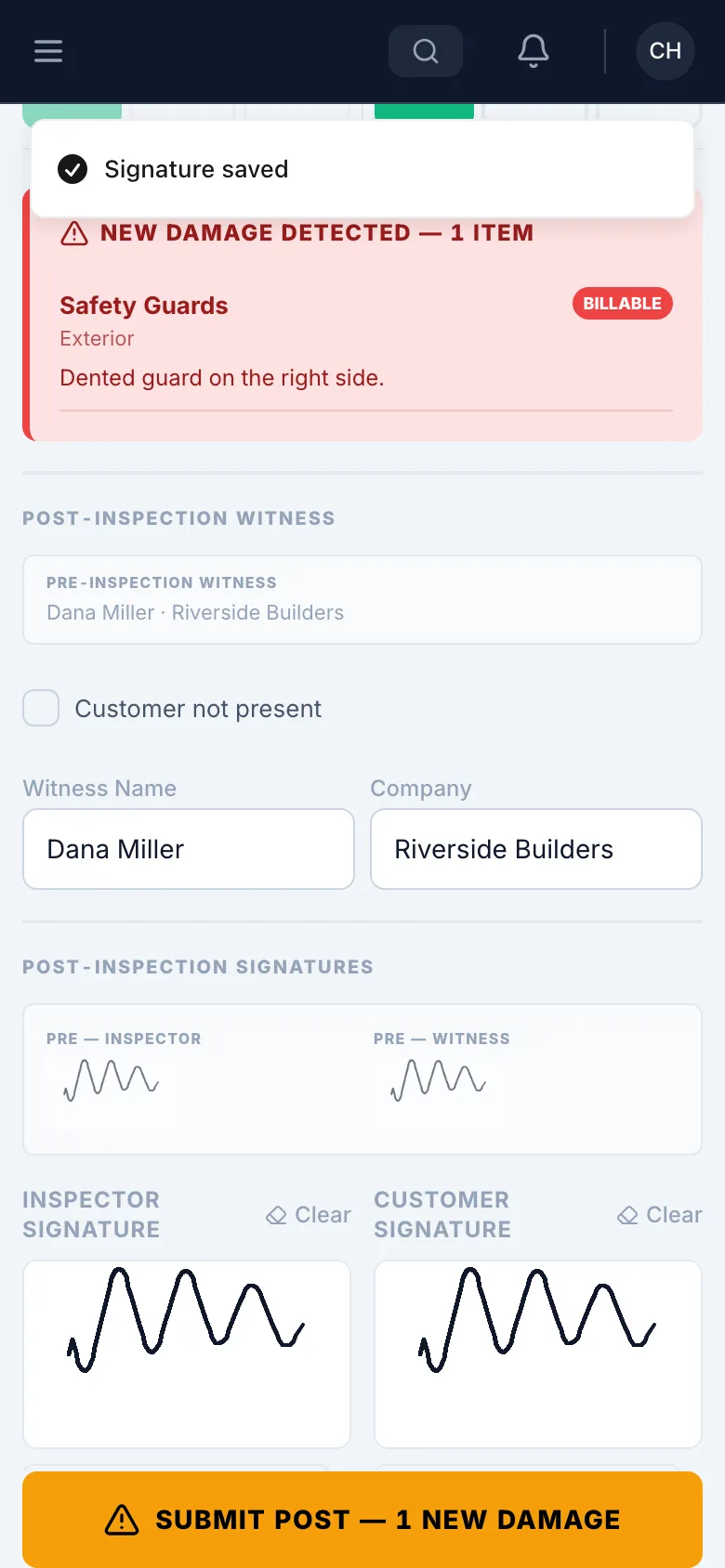
Sign under Inspector Signature. Then hand the customer your phone to sign under Customer Signature.
A signature saves by itself a moment after you stop. Confirm Signature saves it right away.
Submit
Tap Submit Post. The button tells you how much new damage you marked. It takes a few seconds to save, so keep the page open.
See the result
The record shows drop-off and pick-up side by side, with the new damage flagged.